After a user has created their Path Plan(s), the next step is to export the plan. This article will walk you through the process and explain some of the options for Export. Users can export Plans while generating single Path Plans or in bulk on the Plans page.
To Export while creating a Single Path Plan
The option to Export while creating a single Path Plan allows the user to create and export all in one flow. If the plan has not been generated, please follow the article How to create a Path Plan on a Single Field
- During the process to create a single plan, Once the plan has been generated it is automatically saved.
-
After the plan has been generated, the plan can be exported immediately.
-
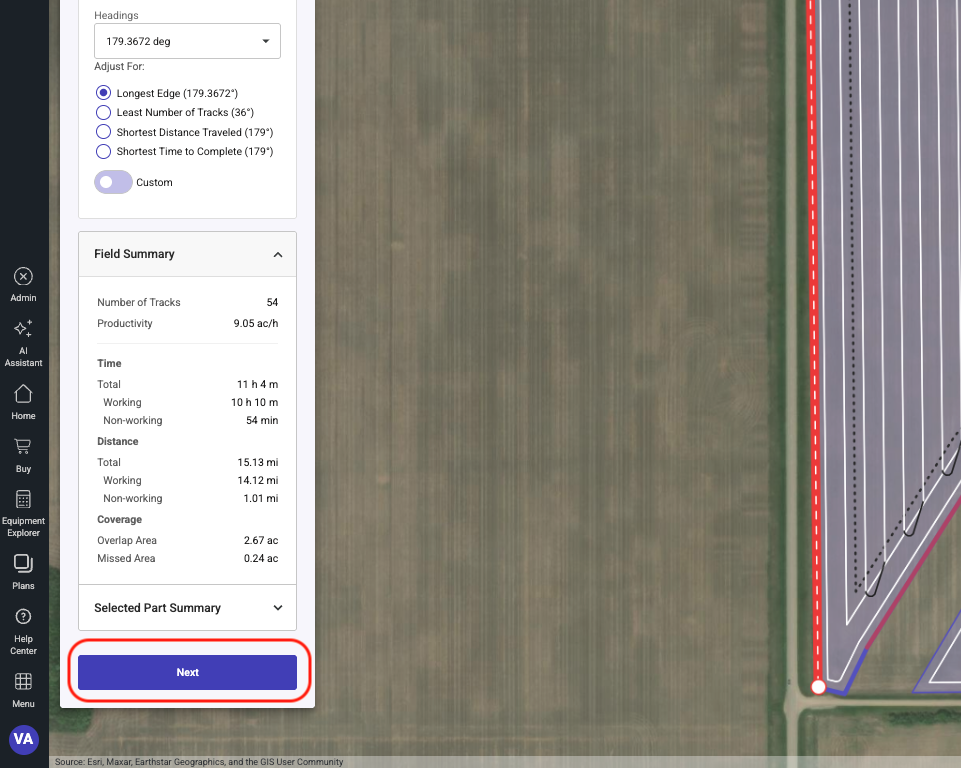
Click on the Next button
-
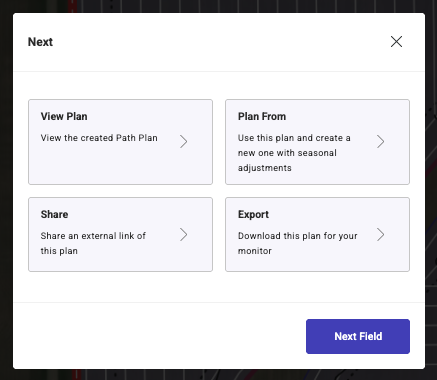
Click on the Export button
-
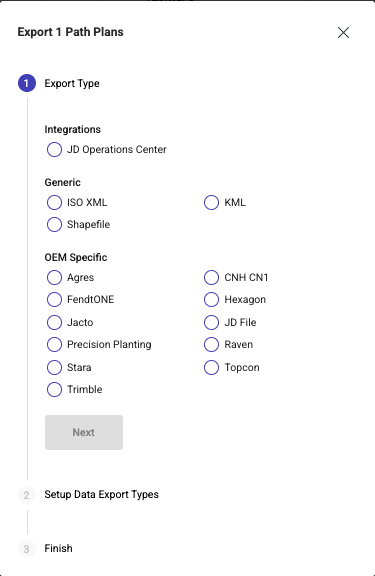
Select The desired Export Type and click Next
-
Integrations:
-
JD Operations Center
-
This option is only available on accounts connect to a My John Deere account. This will push the file directly to the users Operation in Deere Operations Center. From Deere Operations Center, the user can wirelessly send the guidance to the machines.
-
Generic:
-
ISO XML
-
Will generate an ISO TaskData folder for ISO capable machines
-
Shapefile
-
Will create a Shapefile of the selected Path Plan(s)
-
KML
-
Will generate a KML file type
-
OEM Specific
-
Agres
-
Generates Shapefiles configured to be used in the Agres monitors
-
CNH CH1
-
Will export a xxxxxx.cn1 folder to be moved to the monitor.
-
FendtONE
-
Generates an ISO file configured to be used in the FendtONE monitor.
-
Hexagon
-
Generates Shapefiles configured to be used in the Hexagon monitors
-
Jacto
-
Generates Shapefiles configured to be used in the Jacto monitors
-
JD File
-
After selecting Next you will have the option to select your monitor type
-
Each export will be formatted appropriately
-
Precision Planting
-
Generates Shapefiles configured to be used in the Precision Planting monitors
-
Raven
-
Generates an ISO file configured to be used in the Raven monitors
-
Stara
-
Generates Shapefiles configured to be used in the Stara monitors
-
Topcon
-
Generates an ISO file configured to be used in the Topcon monitors
-
Trimble
-
After selecting Next the user will have an option for export format. AgGPS or AgData
-
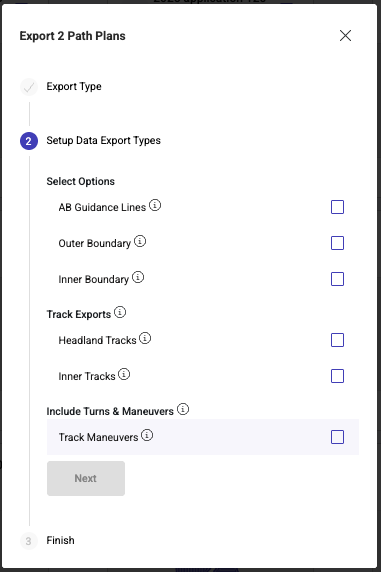
Select the Types of data to be exported and click Next
-
Select Options
-
AB Guidacne Lines
Single Line that the equipment display can propagate based on the equipment width (one per field part) -
Outer Boundary
Field boundary including all parts and obstacles -
Inner Boundary
Defines the inner field area and typically used to control section shutoff -
Track Exports
-
Headland Tracks
Includes all tracks outlining the inside of the field boundary -
Inner Tracks
Includes all tracks (curved or straight) for the inner field area -
Turns and Maneuvers
-
Track Maneuvers, Includes inner Tracks and the turns
-
Headland Maneuvers, Adds the headland maneuvers to the Track Maneuvers
-
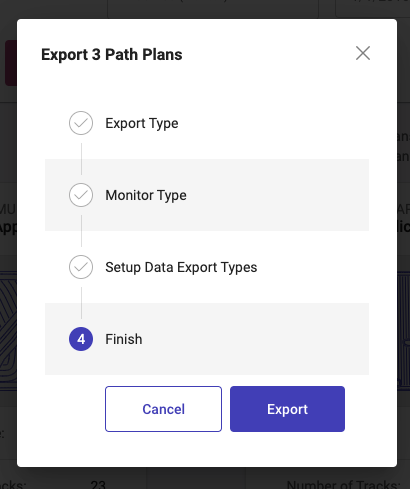
Click Export to generate the Download link
-
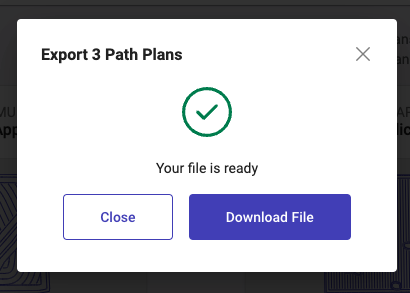
Click Download, This will save a Zipped Guidance export to your computer. This Zipped file will need to be unzipped prior to moving to a USB Stick
To Export from the Plans Page
The Plans page allows users to export a single plan or multiple plans at one time that have been saved. If the plan is not already generated and saved please follow one of the two following Articles to walk you through the process of creating a plan or a batch of plans.
How to create a Path Plan on a Single Field
How to create a Path Plan on Multiple Fields (Batch)
To export, navigate to the Plans page by click on the "Plans" tab on the left of the screen. Follow the process below to export Path Plan(s)
- The list of plans can be filtered by Field, operation type, and Date Created
-
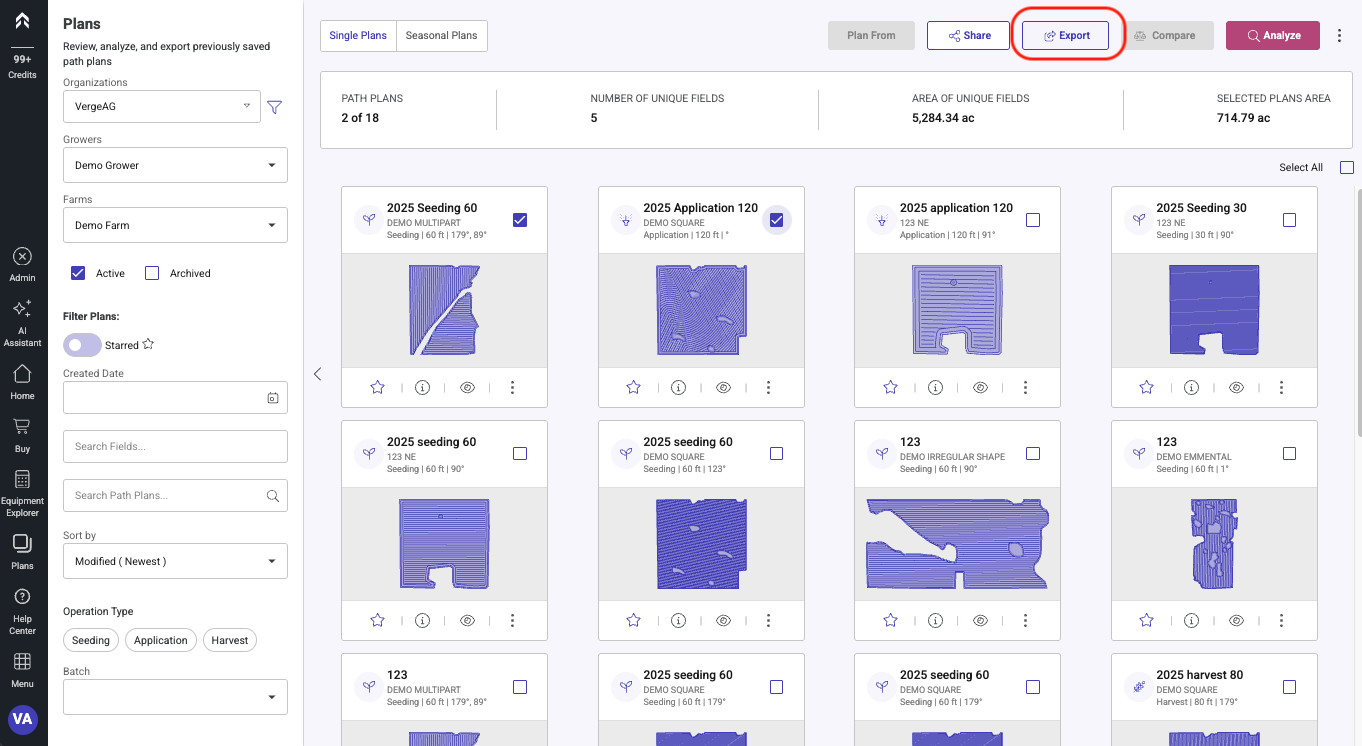
Select the Path Plan(s) to be exported
-
Click on the Export button
-
Select The desired Export Type and click Next
-
Integrations:
-
JD Operations Center
-
This option is only available on accounts connect to a My John Deere account. This will push the file directly to the users Operation in Deere Operations Center. From Deere Operations Center, the user can wirelessly send the guidance to the machines.
-
Generic:
-
ISO XML
-
Will generate an ISO TaskData folder for ISO capable machines
-
Shapefile
-
Will create a Shapefile of the selected Path Plan(s)
-
KML
-
Will generate a KML file type
-
OEM Specific
-
Agres
-
Generates Shapefiles configured to be used in the Agres monitors
-
CNH CH1
-
Will export a xxxxxx.cn1 folder to be moved to the monitor.
-
FendtONE
-
Generates an ISO file configured to be used in the FendtONE monitor.
-
Hexagon
-
Generates Shapefiles configured to be used in the Hexagon monitors
-
Jacto
-
Generates Shapefiles configured to be used in the Jacto monitors
-
JD File
-
After selecting Next you will have the option to select your monitor type
-
Each export will be formatted appropriately
-
Precision Planting
-
Generates Shapefiles configured to be used in the Precision Planting monitors
-
Raven
-
Generates an ISO file configured to be used in the Raven monitors
-
Stara
-
Generates Shapefiles configured to be used in the Stara monitors
-
Topcon
-
Generates an ISO file configured to be used in the Topcon monitors
-
Trimble
-
After selecting Next the user will have an option for export format. AgGPS or AgData
-
Select the Types of data to be exported and click Next
-
Select Options
-
AB Guidacne Lines
Single Line that the equipment display can propagate based on the equipment width (one per field part) -
Outer Boundary
Field boundary including all parts and obstacles -
Inner Boundary
Defines the inner field area and typically used to control section shutoff -
Track Exports
-
Headland Tracks
Includes all tracks outlining the inside of the field boundary -
Inner Tracks
Includes all tracks (curved or straight) for the inner field area -
Turns and Maneuvers
-
Track Maneuvers, Includes inner Tracks and the turns
-
Headland Maneuvers, Adds the headland maneuvers to the Track Maneuvers
-
Click Export to generate the Download link
-
Click Download, This will save a Zipped Guidance export to your computer. This Zipped file will need to be unzipped prior to moving to a USB Stick

After exporting the Guidance Please reference our Monitor Specific documents to assist in loading the guidance file to the monitor. (This is not a complete list of all monitors that we are capable of working with. We are adding new Documents as we complete them)
How to Load a Verge Ag Guidance export in a John Deere Gen 4 monitor
How to Load a Verge Ag Guidance export in a Trimble GFX/TMX monitor through Precision IQ
How to Load a Verge Ag Guidance export in a Case Pro 700 / New Holland Intelliview 4 monitor
How to Load a Verge Ag Guidance export in a Case Pro 1200/ New Holland Intelliview 12 monitor