Please follow the steps below to create a Path Plan on a Single Field. This can be accomplished on either the Home or Land Page.
Generate Path Plan from the Home Page
-
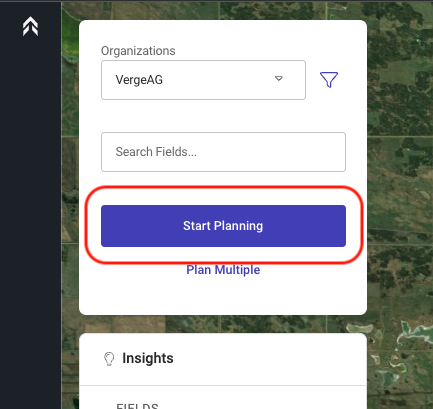
Click on the “Start Planning” button
-
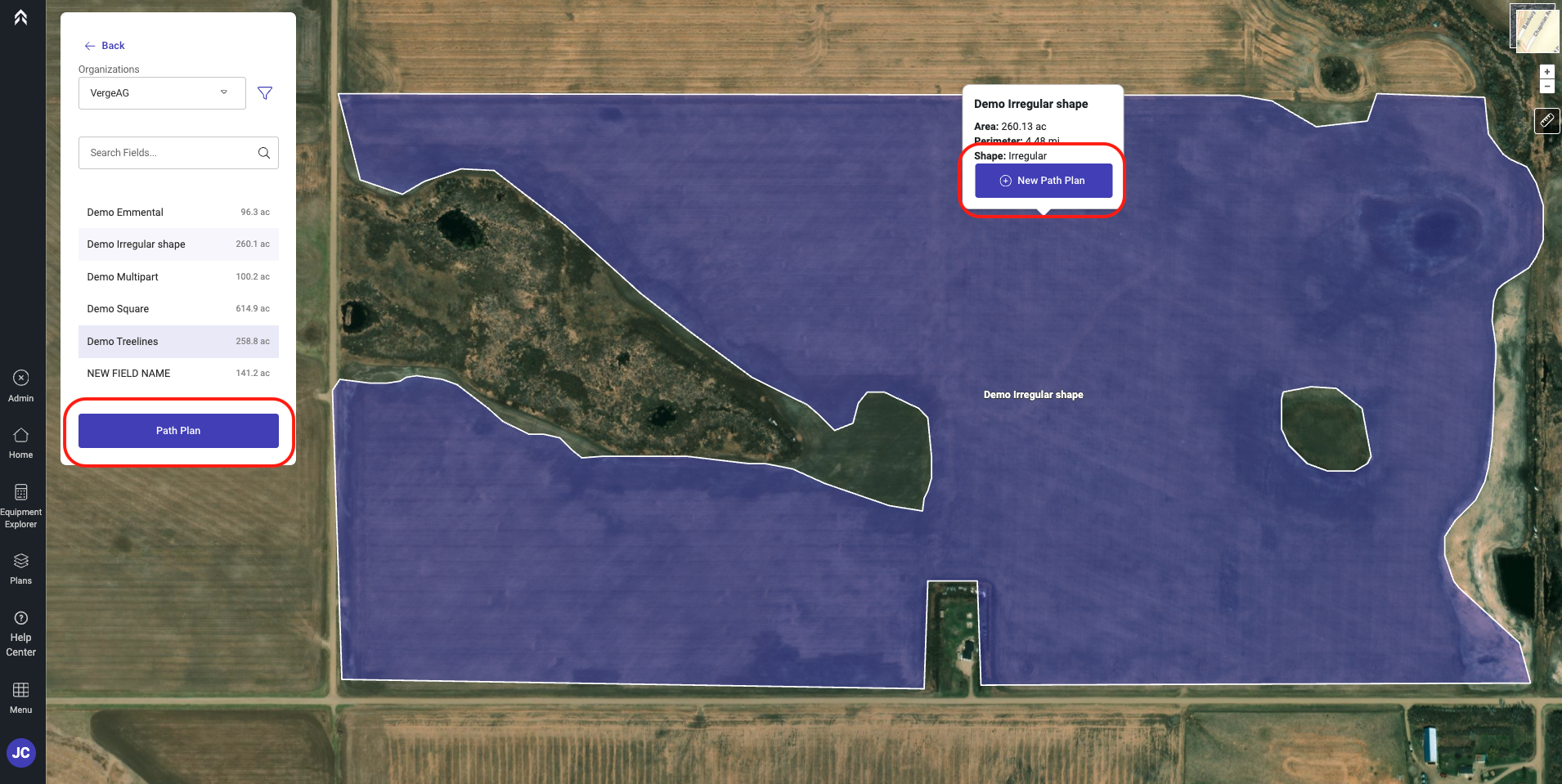
Select the field you would like to create a Path Plan for
-
Click either the Path Plan button or the New Path Plan button
-
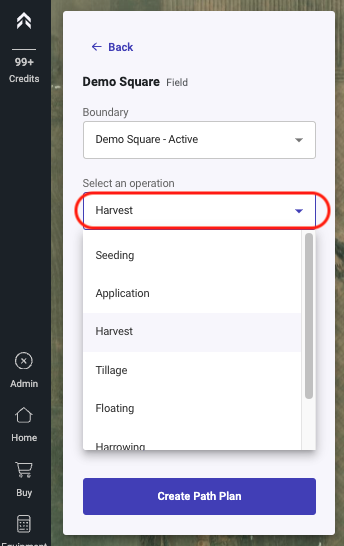
Select the operation type
-
Select the equipment from the Drop down
- This list will display all equipment in the users saved equipment for the operation type selected above. -
Enter the Swath Width
- A custom width can be entered to be used during the generation of the Plan -
Select number of Headland/Perimeter passes
-
Select the number of Interior Passes. (Number of passes around internal obstacles)
-
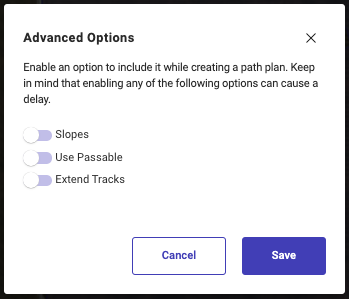
Optional: “Advanced Options” allows you to Edit Features used during the creation of the Path Plan.
-
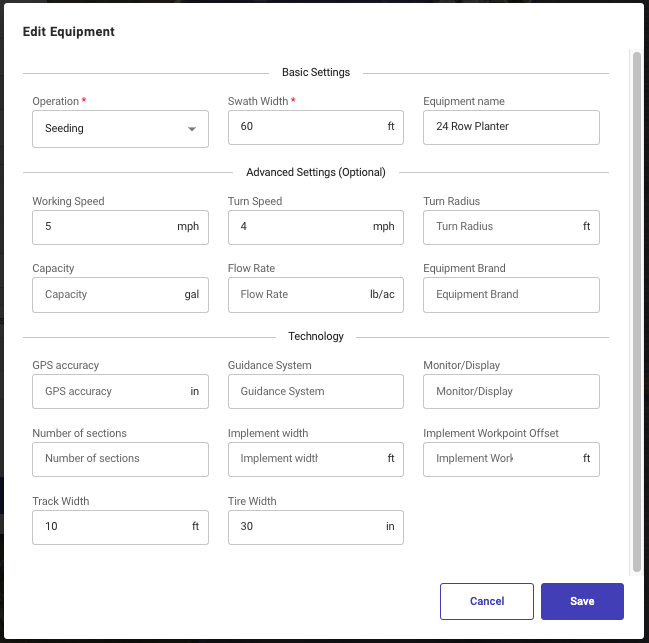
Optional: "Edit Equipment" allows you to edit the equipment specific details used during the Path Plan generation.
-
Click Create Path Plan
-
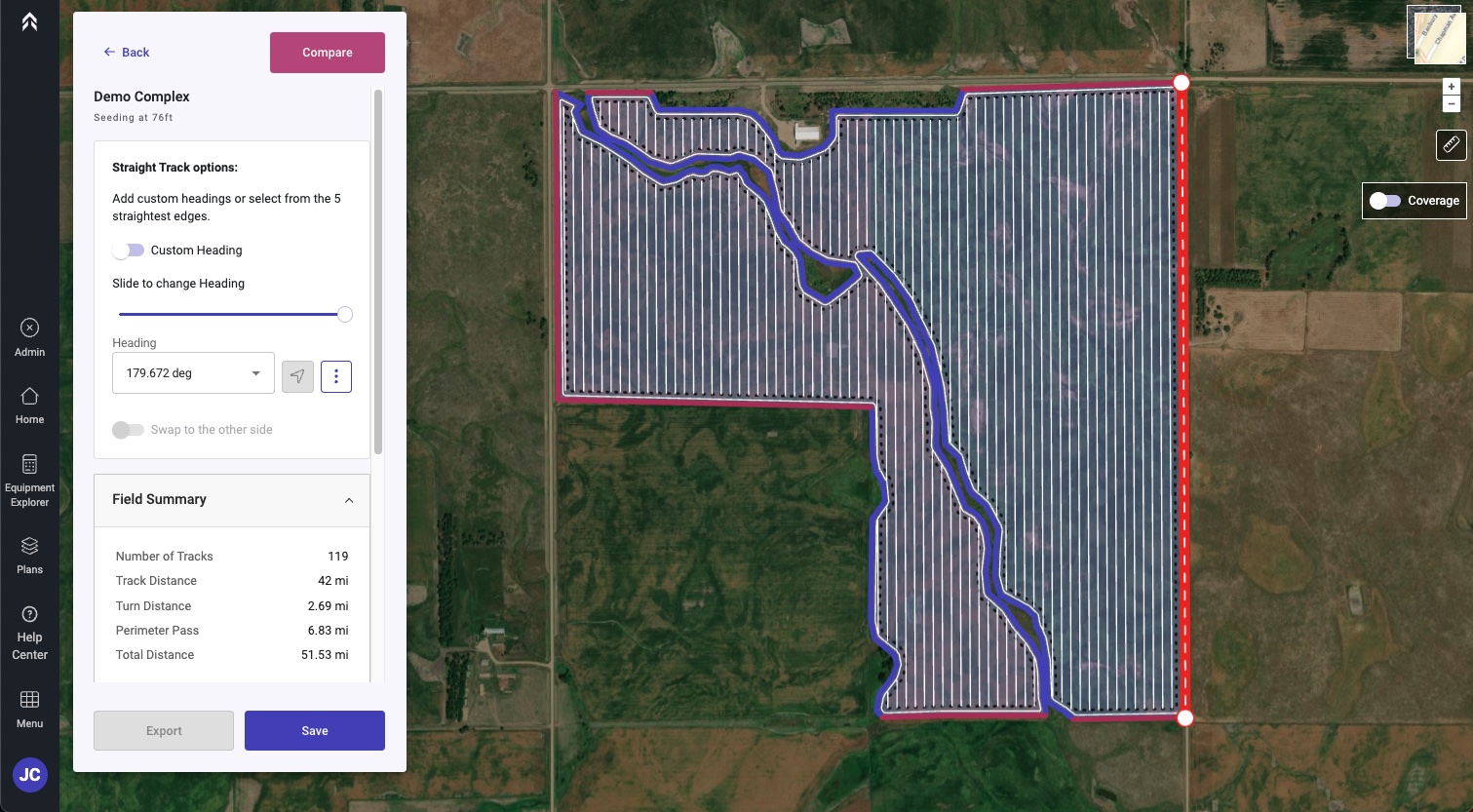
The Path Plan will be displayed with the optimal guidance line by default
-
The Path Plan is auto saved and available in the Plans page
-
You as a user have the ability to choose any angle you would like
-
-
-
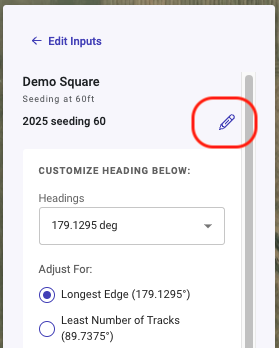
If you would like to change the default Path Plan name, Click the pencil icon next to the default name.
-
Click Next to proceed to the options following the creating of the Path Plan
-
Next Plan: Plan the next field from the dashboard
-
Plan From: Create a new Plan with Seasonal adjustments
-
Share: Create a link that can be shared to anyone
-
Export: Download the plan that was just generated
Generate Path Plan from the Land Page
-
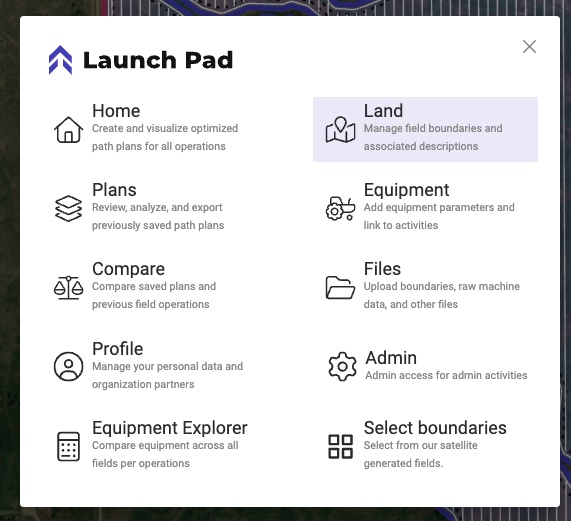
Click on Menu and select “Land”
-
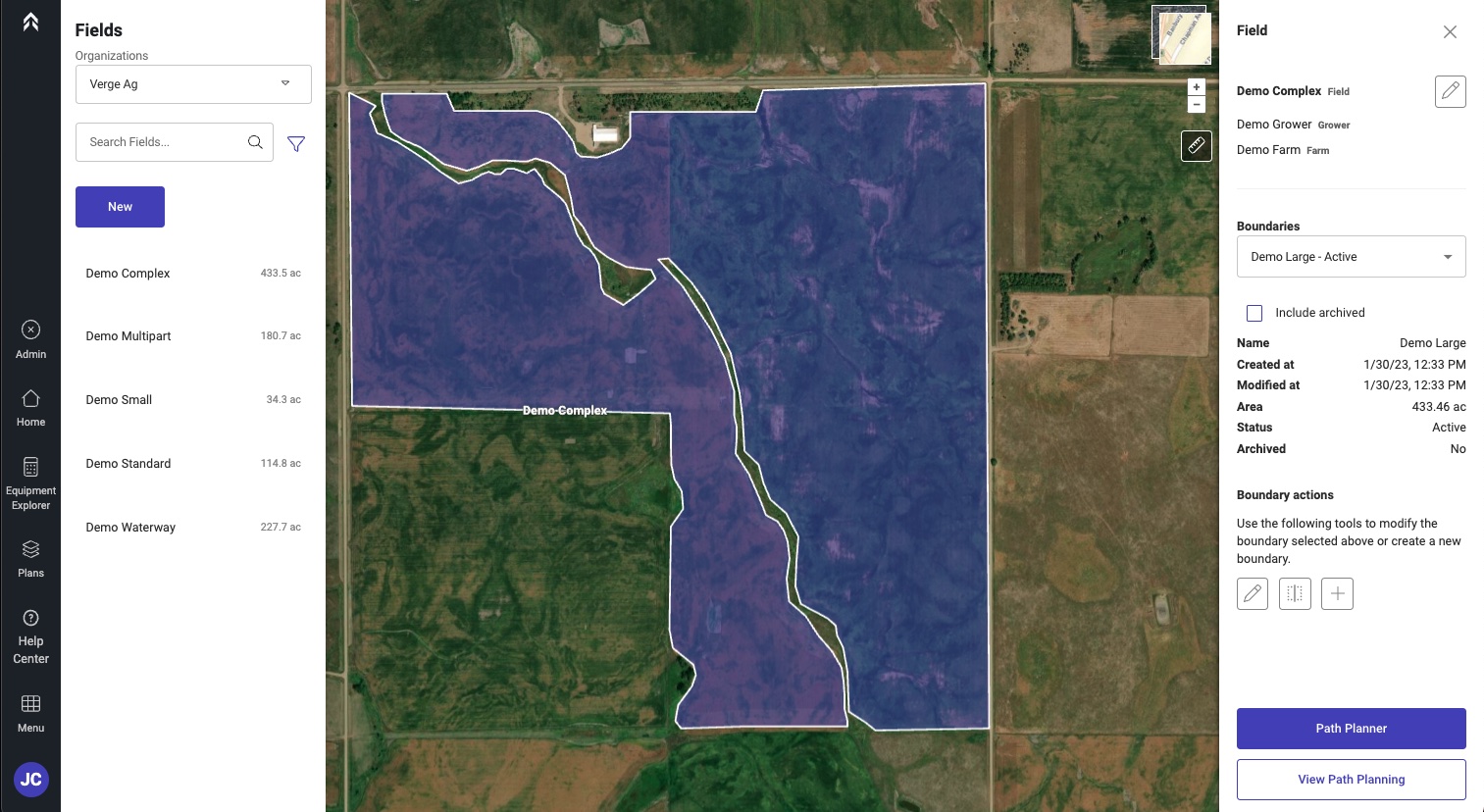
Select the field you would like to create a Path Plan on
-
Click “Path Planner” in the lower right
-
Select the operation type
-
Select the equipment from the Drop down
- This list will display all equipment in the users saved equipment for the operation type selected above. -
Enter the Swath Width
- A custom width can be entered to be used during the generation of the Plan -
Select number of Headland/Perimeter passes
-
Select the number of Interior Passes. (Number of passes around internal obstacles)
-
Optional: “Advanced Options” allows you to Edit Features used during the creation of the Path Plan.
-
Optional: "Edit Equipment" allows you to edit the equipment specific details used during the Path Plan generation.
-
Click Create Path Plan
-
The Path Plan will be displayed with the optimal guidance line by default
-
The Path Plan is auto saved and available in the Plans page
-
You as a user have the ability to choose any angle you would like
-
-
-
If you would like to change the default Path Plan name, Click the pencil icon next to the default name.
-
Click Next to proceed to the options following the creating of the Path Plan
-
Next Plan: Plan the next field from the dashboard
-
Plan From: Create a new Plan with Seasonal adjustments
-
Share: Create a link that can be shared to anyone
-
Export: Download the plan that was just generated