-
Create an export the Path Plan from Launch Pad
-
Copy the extracted folder (un-ziped) (AgGPS or AgData) to the root directory of the USB to transfer to the monitor
-
With the system powered up insert the USB
-
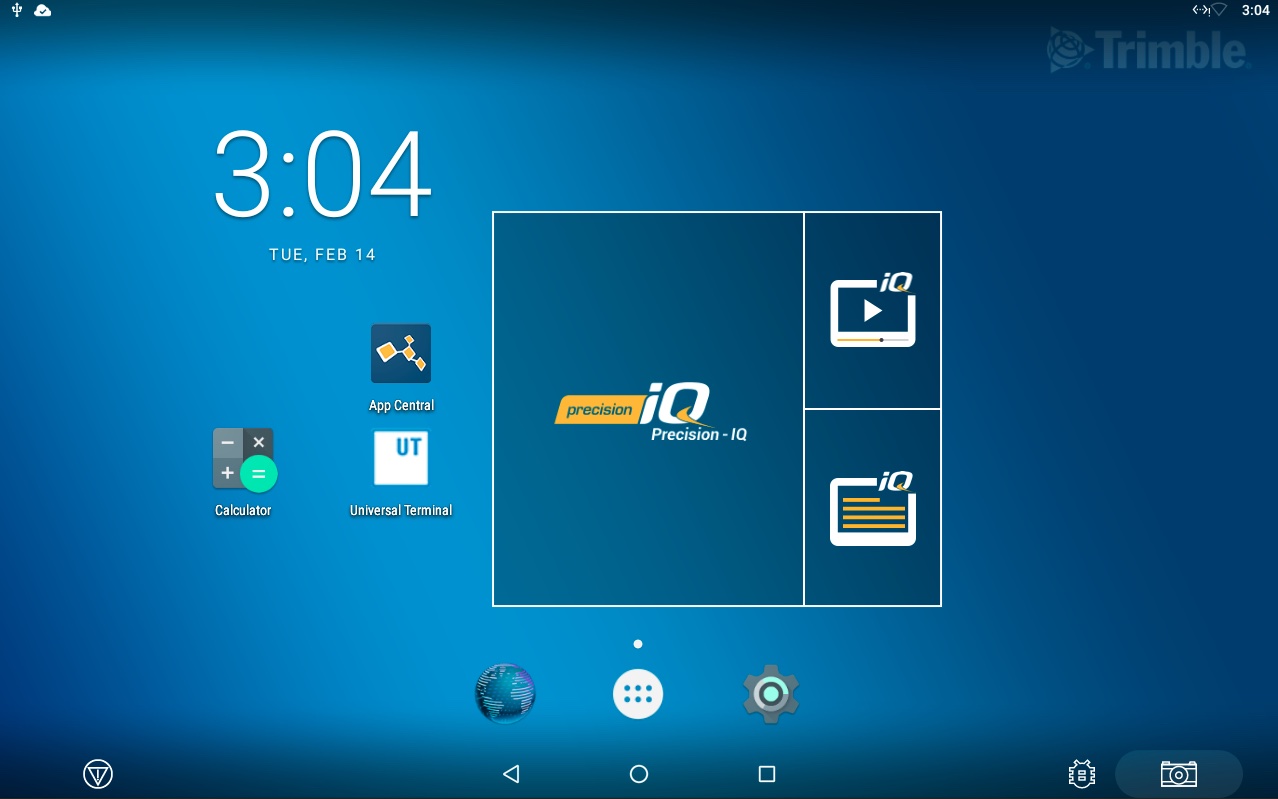
Click on the Precisoin IQ app
-
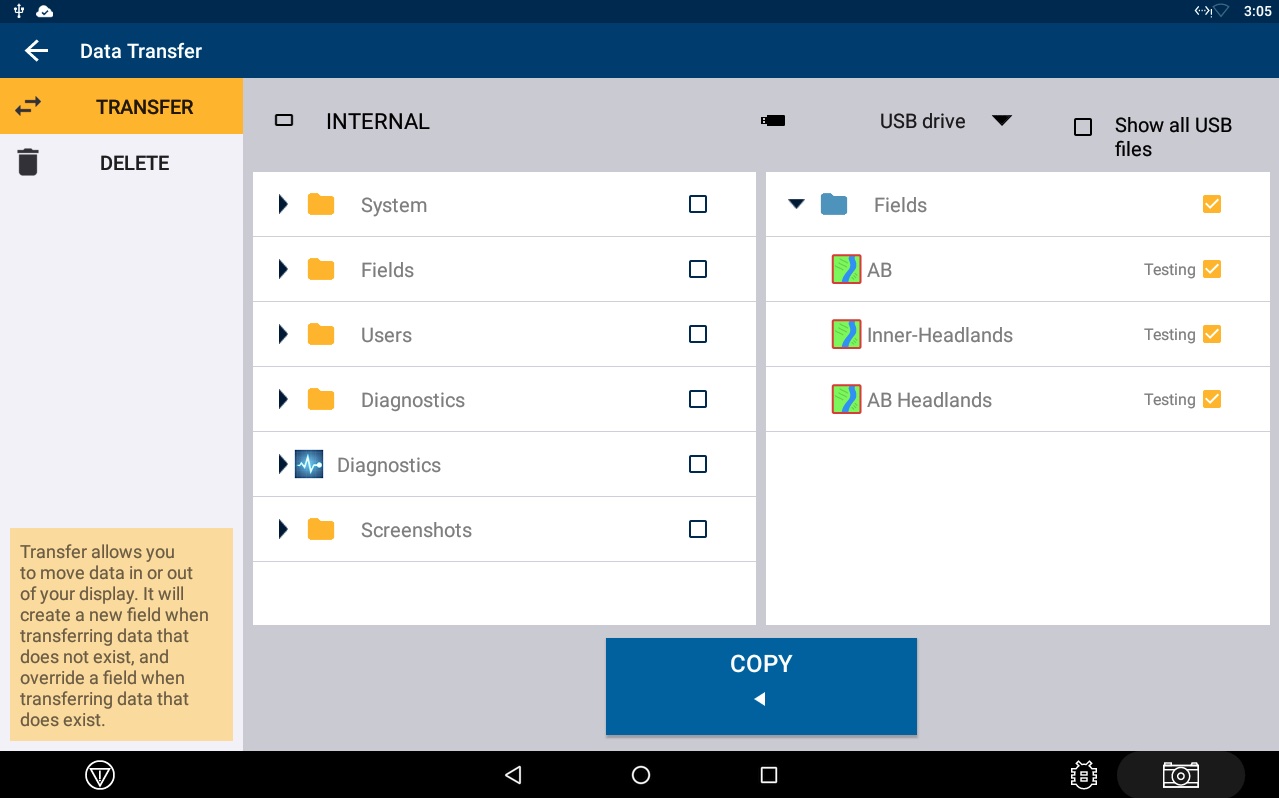
Click on "Data Transfer"
-
Select the data to be copied in the right column
-
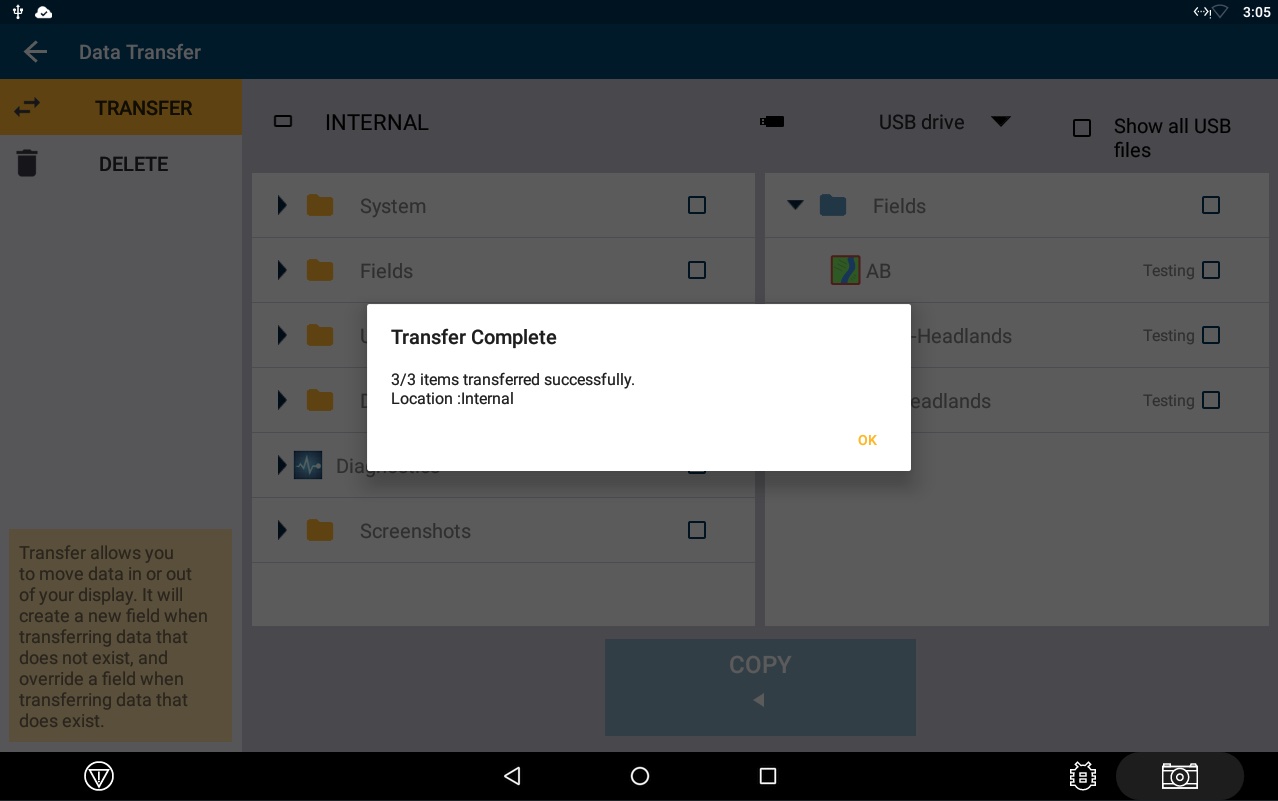
Click Copy to copy the data from the USB to the internal storage on the monitor
How to Select a Field in the monitor that was loaded
-
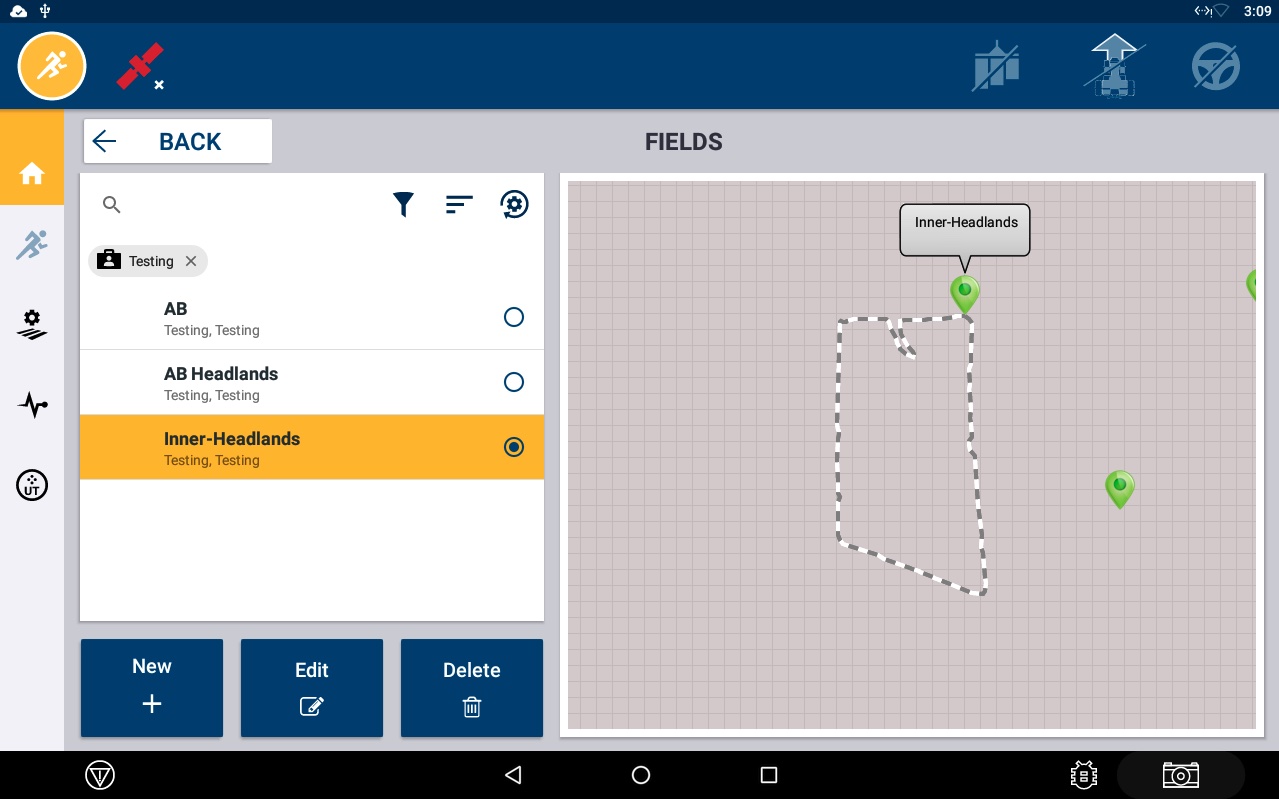
From the main Precision IQ screen select the Field tile
-
Select the Filter Icon if you are not seeing the Fields that were loaded, they may be under a different Grower, Farm or Field that the list is currently filtered to
-
Select the Field you would like to use
-
To verify the lines are available click on the Field Settings Button
-
Click on the Guidance Patterns Tab
-
Select the Guidance you would like to use and activate.
Examples of Guidance Export options
-
Export AB Guidance
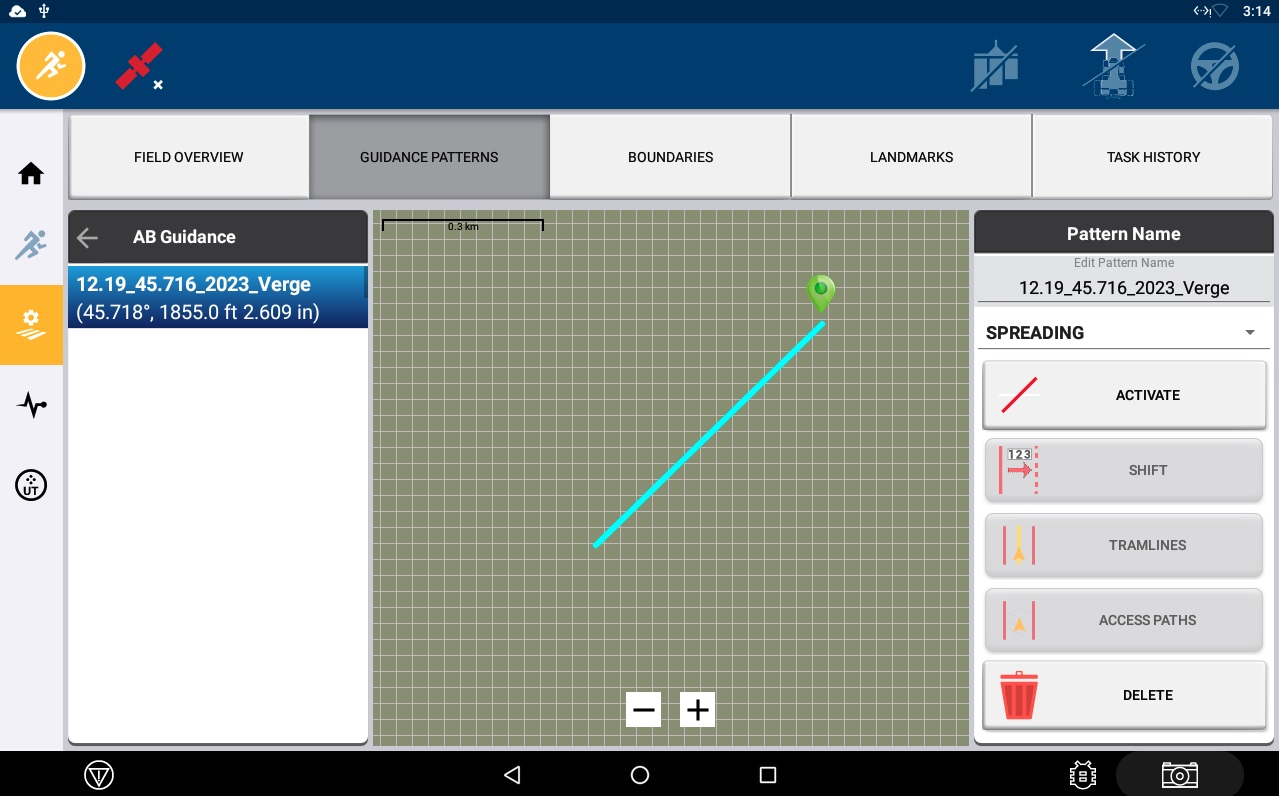
-
Export AB Guidance and Headlands
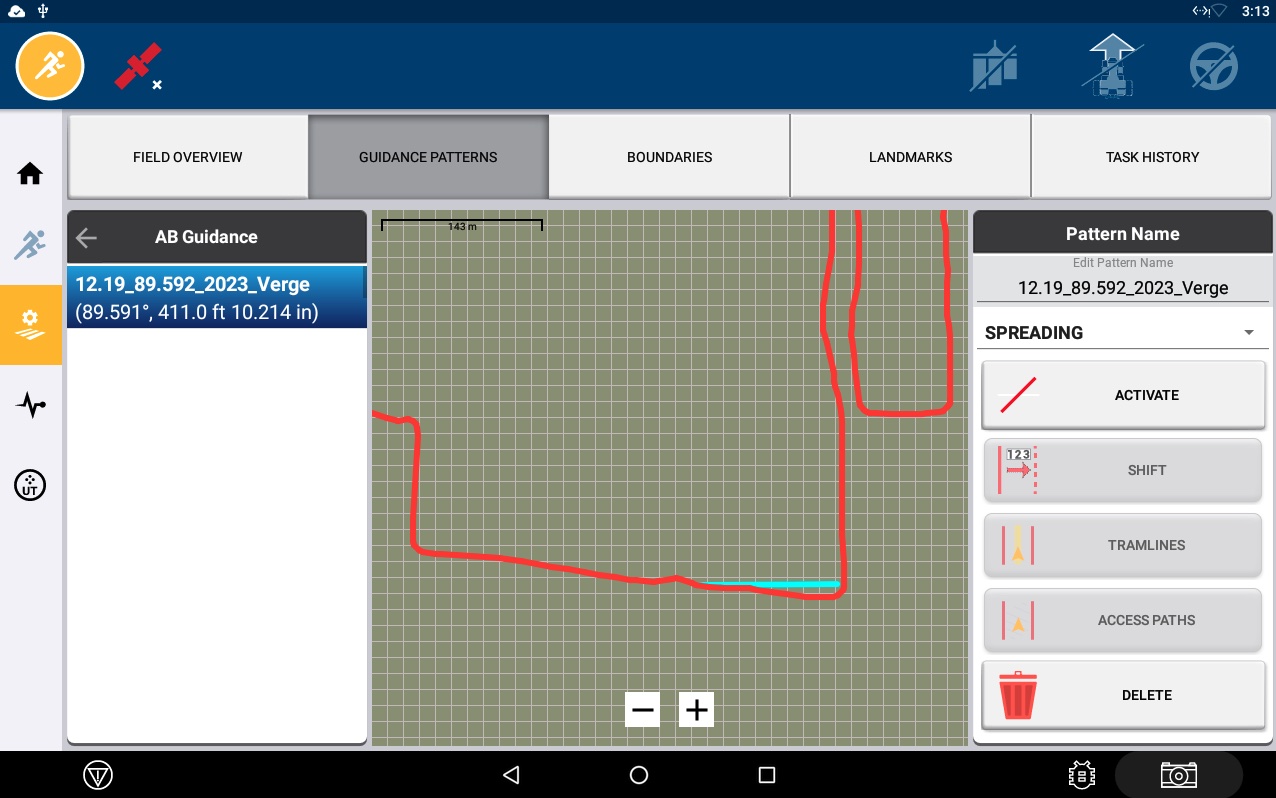
-
Export Inner Tracks and Headlands
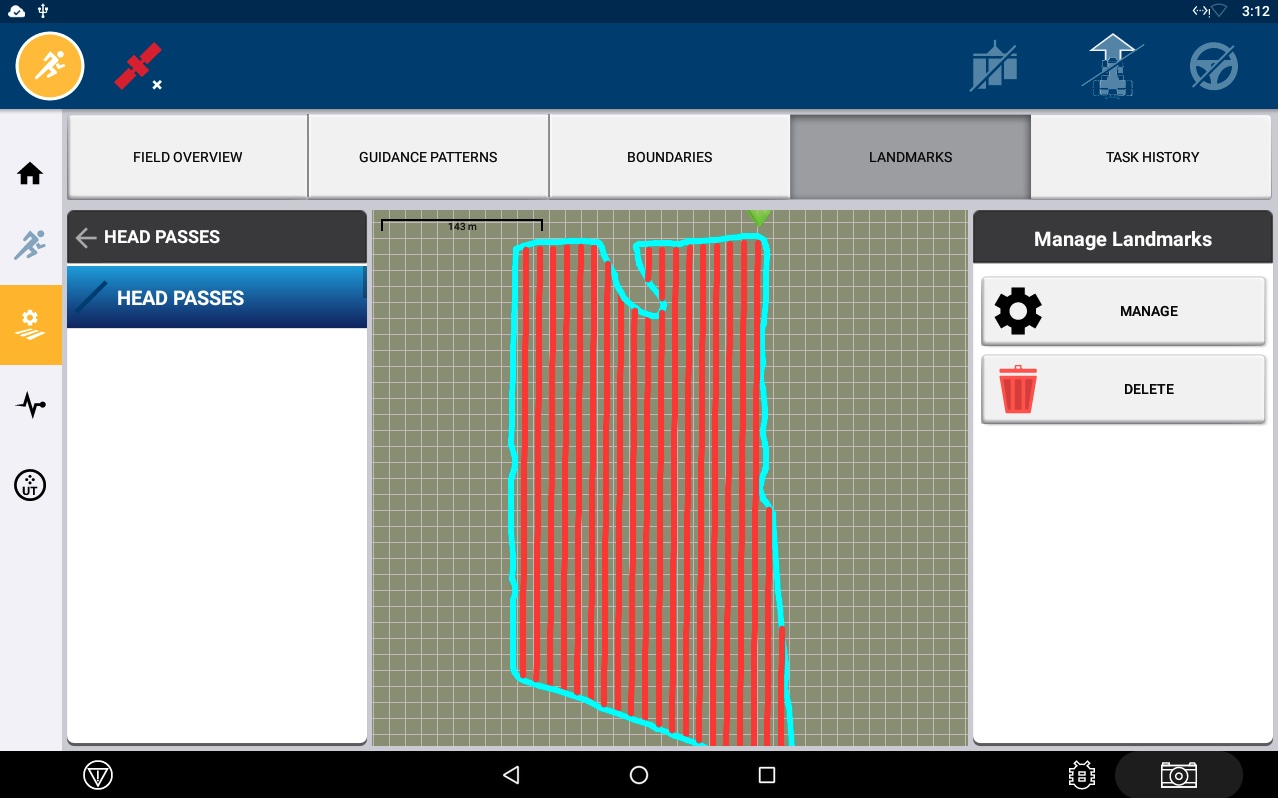
Note: Trimble 750 and 2050 both run the Precision IQ app. The 2050 also allows the user to use the FMX Plus App to run guidance