How to create a Path Plan on Multiple Fields (Batch)
Please follow the steps below to create a Path Plan on Multiple Fields. This can only be accomplished from the Home Page
-
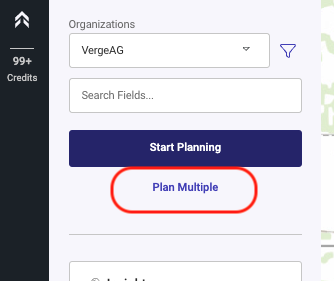
From the Home page select Plan Multiple
-
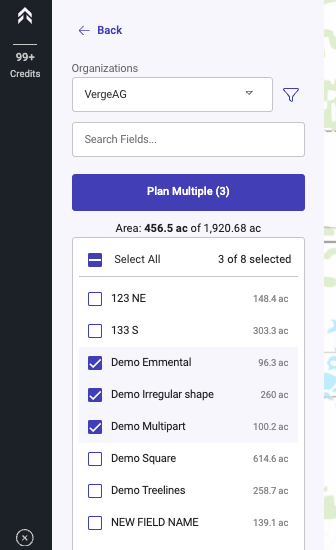
Select the check box next to the fields you would like to create a Path Plans for
-
Click the “Plan Multiple” button
-
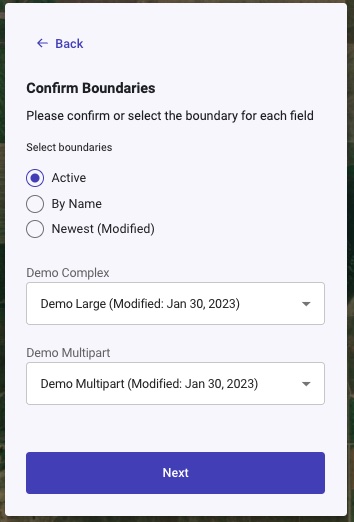
Confirm Boundaries on each field and click Next.
- This would allow you to use an alternate boundary if you have more than one on a field.
-
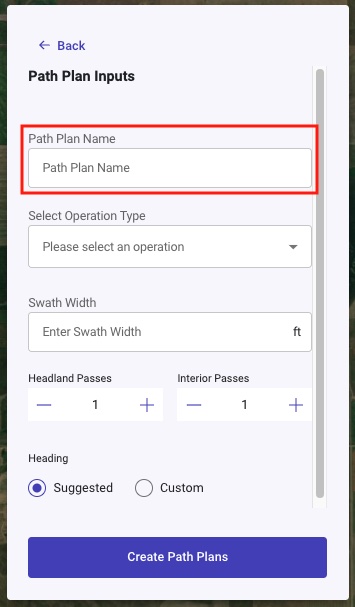
Enter the a name for the Path Plans
-
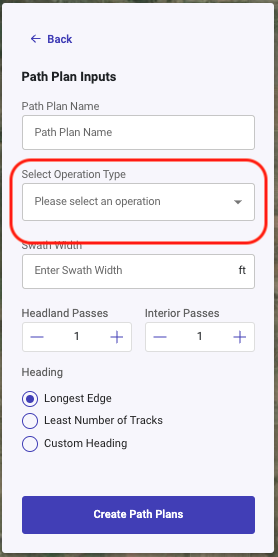
Select the operation type
-
Select the equipment from the Drop down
- This will display multiple pieces of equipment if the user has multiple items under the same operation type -
Enter the Swath Width
- A custom width can be entered to be used during the generation of the Plan -
Select number of Headland/Perimeter passes
-
Select the number of Interior Passes. (Number of passes around internal obstacles)
-
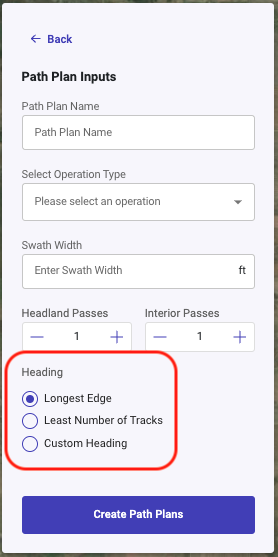
Heading: There is an option to use our Suggested heading (Longest Edge), Least Tracks, or a Custom Heading
-
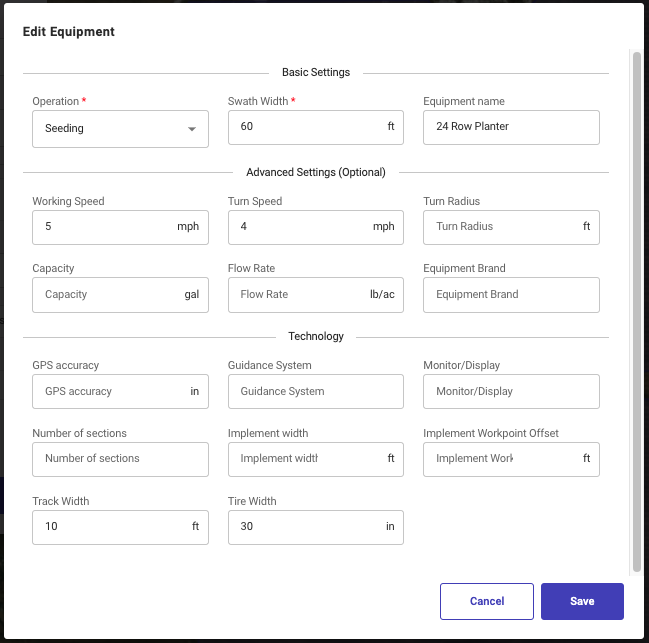
Optional: "Edit Equipment" allows you to edit the equipment specific details used during the Path Plan generation. The option to edit the equipment is shown when a piece of equipment is available for the selected operation type.
-
Click Create Path Plans
-
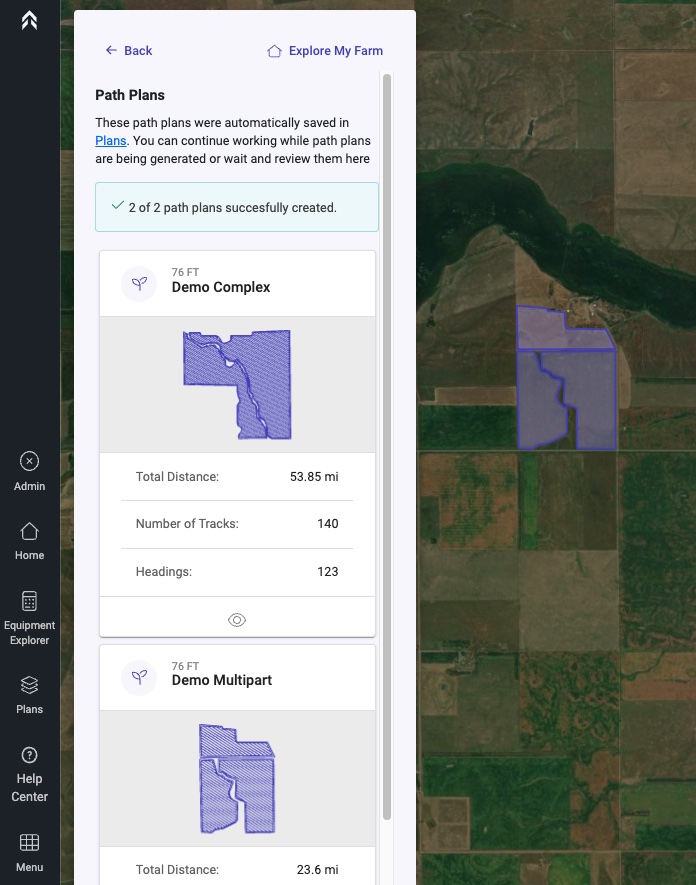
Once the Plans have been generated they will display all fields for review.
- At this point all plans have been saved to your Plans list.
-
(Optional) If you click the "Back" button it will ask if you would like to keep or discard the plans.