Importing the ISO XML Taskdata folder
-
After exporting the ISO XML TaskData from Launch Pad Extract the Taskdata folder and copy to the Root directory of a USB drive
-
On the Monitor, with the System turned on insert the USB
-
Click on Menu
-
Click on Data
-
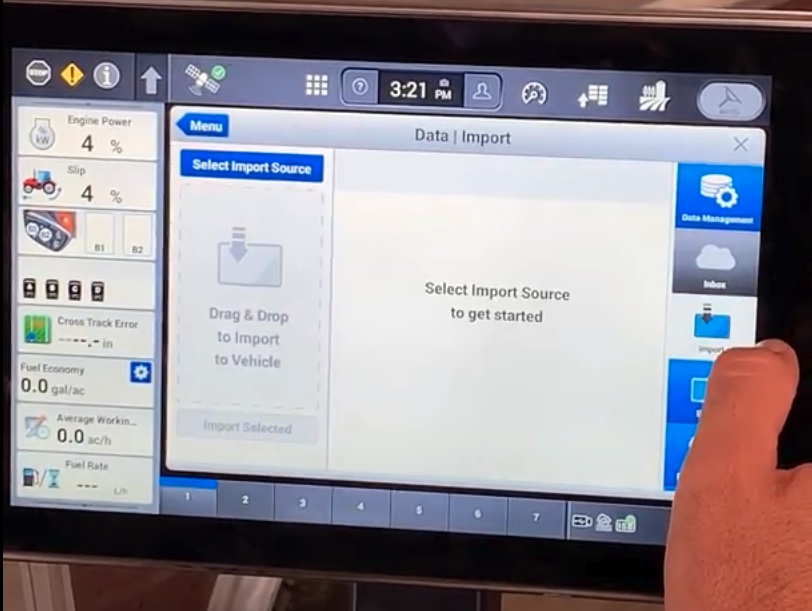
Click on Import
-
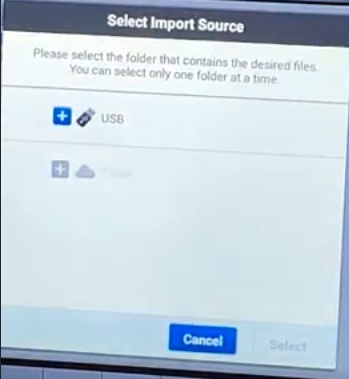
Click Select Import Source
-
Click on the Plush Icon next to USB
-
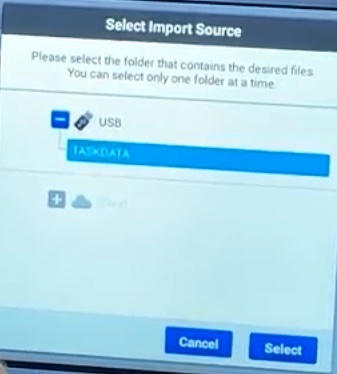
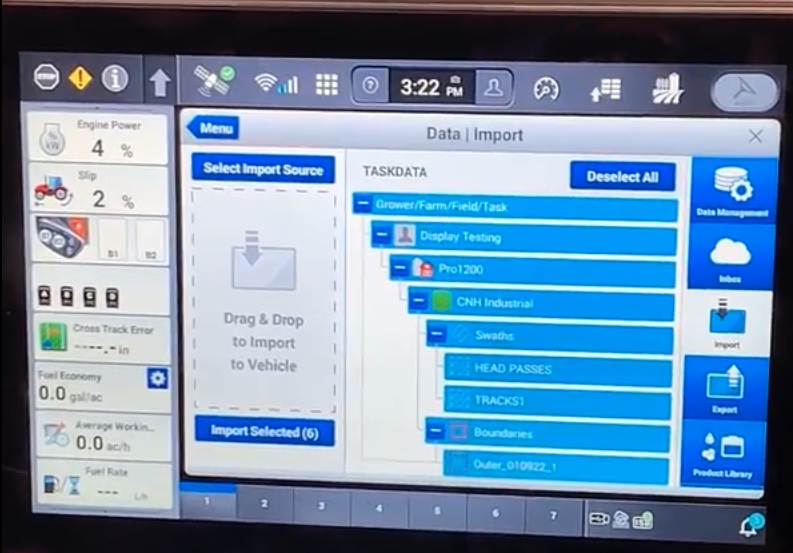
Select TASKDATA and click Select
-
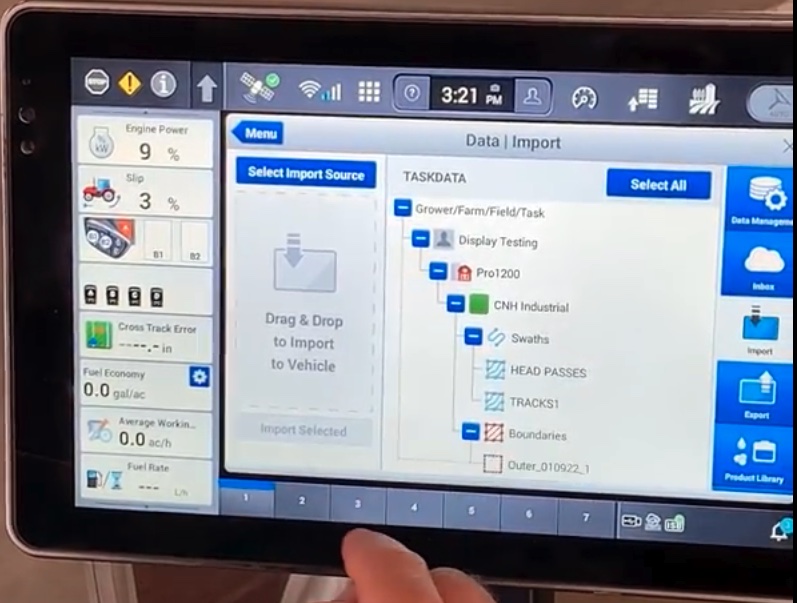
Select the files to be loaded(Generally Select All is pressed)
-
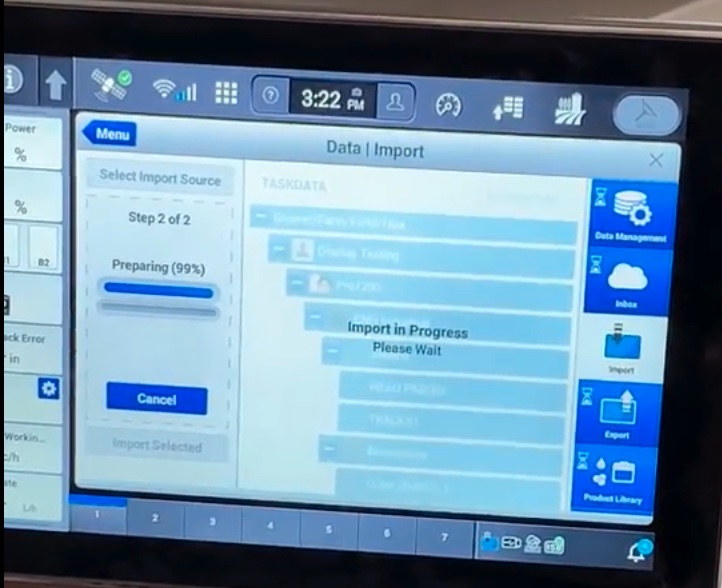
Click Import Selected
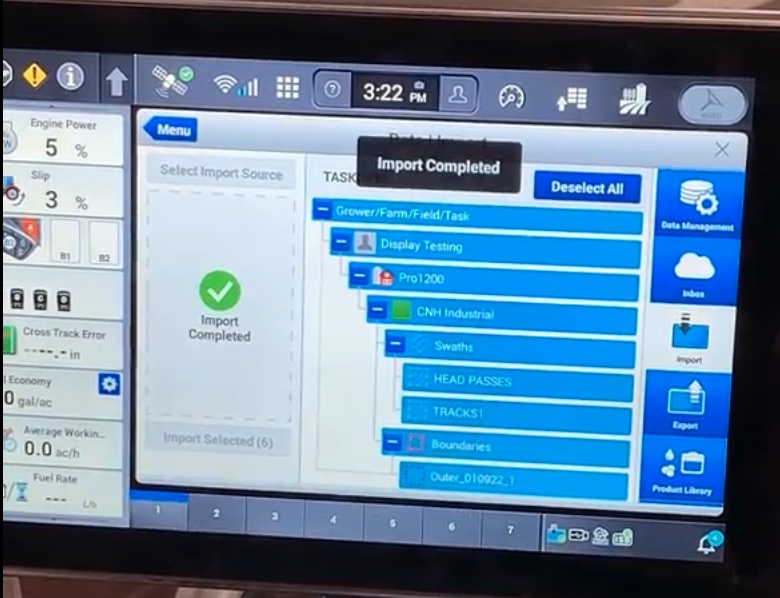
"Import Complete" will display when the files have been successfully imported.
View/Verify/Select Guidance Plans that were just loaded
-
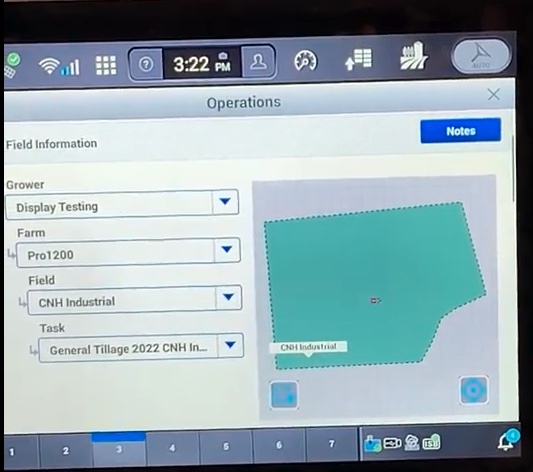
Select the Operations button at the top right
-
Select the Grower Farm and Field for the guidance operation
-
Click on the run screen tab
-
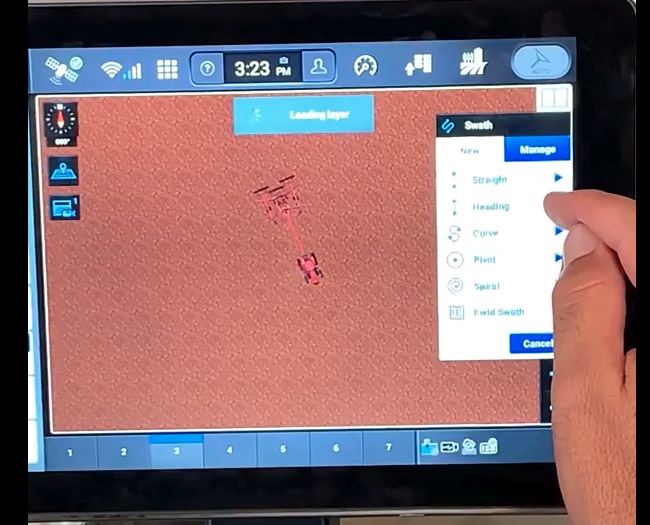
Click on the Swaths Button
-
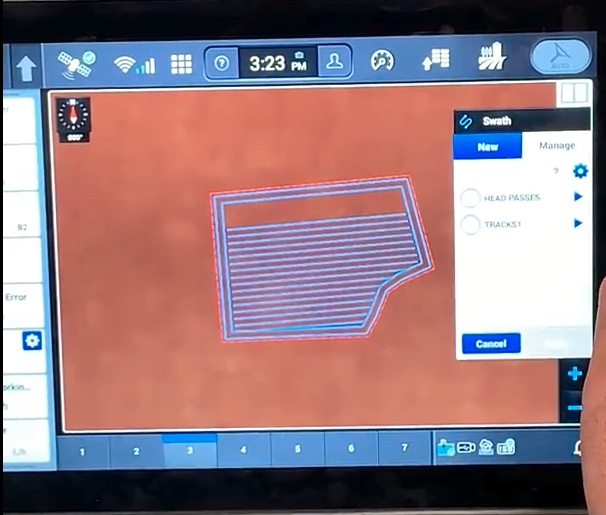
Click Manage
-
The laoded Swaths will be displayed on the screen
-
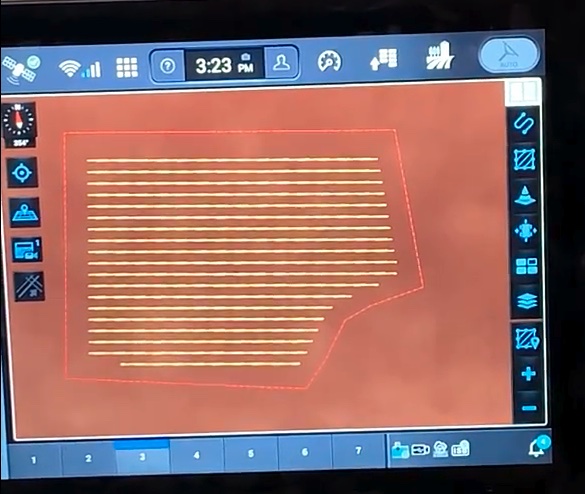
Select the guidance line you would like to use and click Apply.
-
The selected line will display in the field and you are ready to run.
Notes:
-
PLM Connect can transfer lines to the Pro1200/Intellivew 12
-
CN1 files loaded into PLM does not include headlands if selected
-
ISO Loaded into PLM does not result in steerable Line (Still Checking into this one)