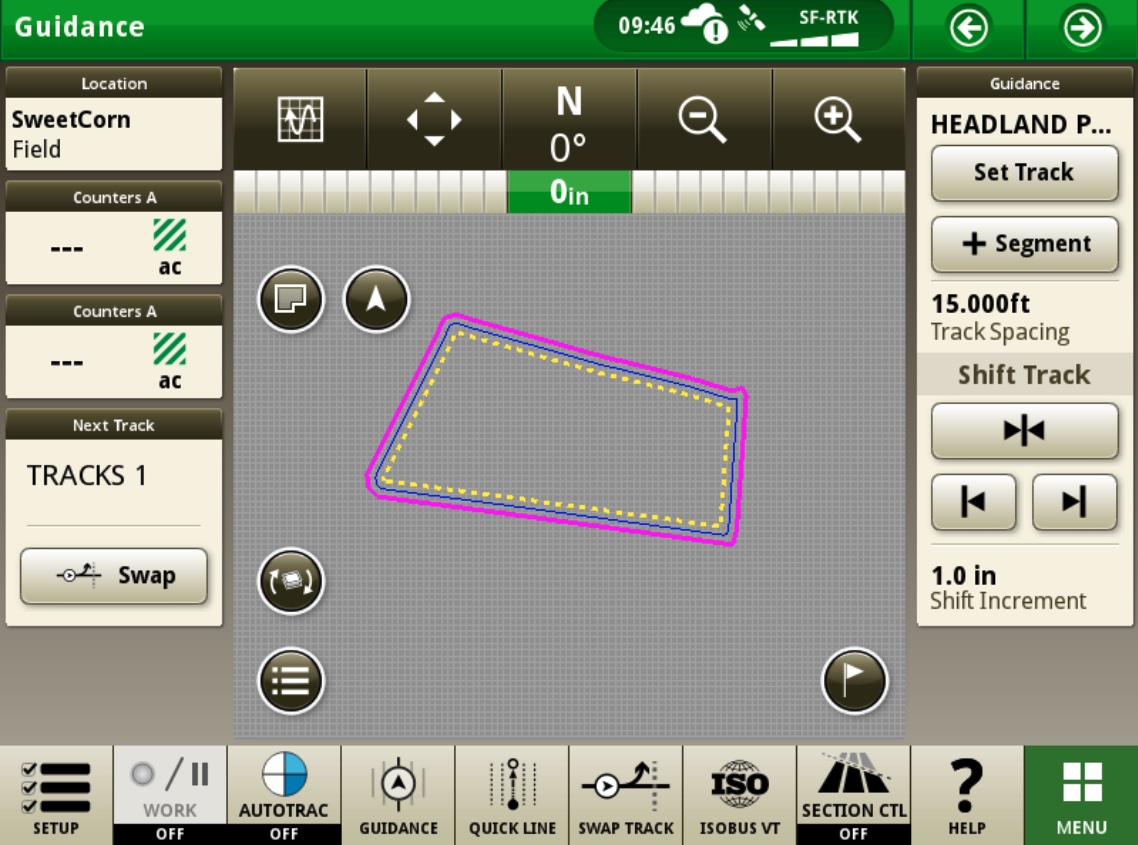
The procedure below shows how to load a setup file directly into a Deere Gen 4 monitor from the JDFile export in Launch Pad.
-
Create and export the Path Plans from Launch Pad
-
Copy the extracted folder (Un Zipped) to the root directory of a USB to transfer to the monitor
-
With the system powered up insert the USB into the monitor
-
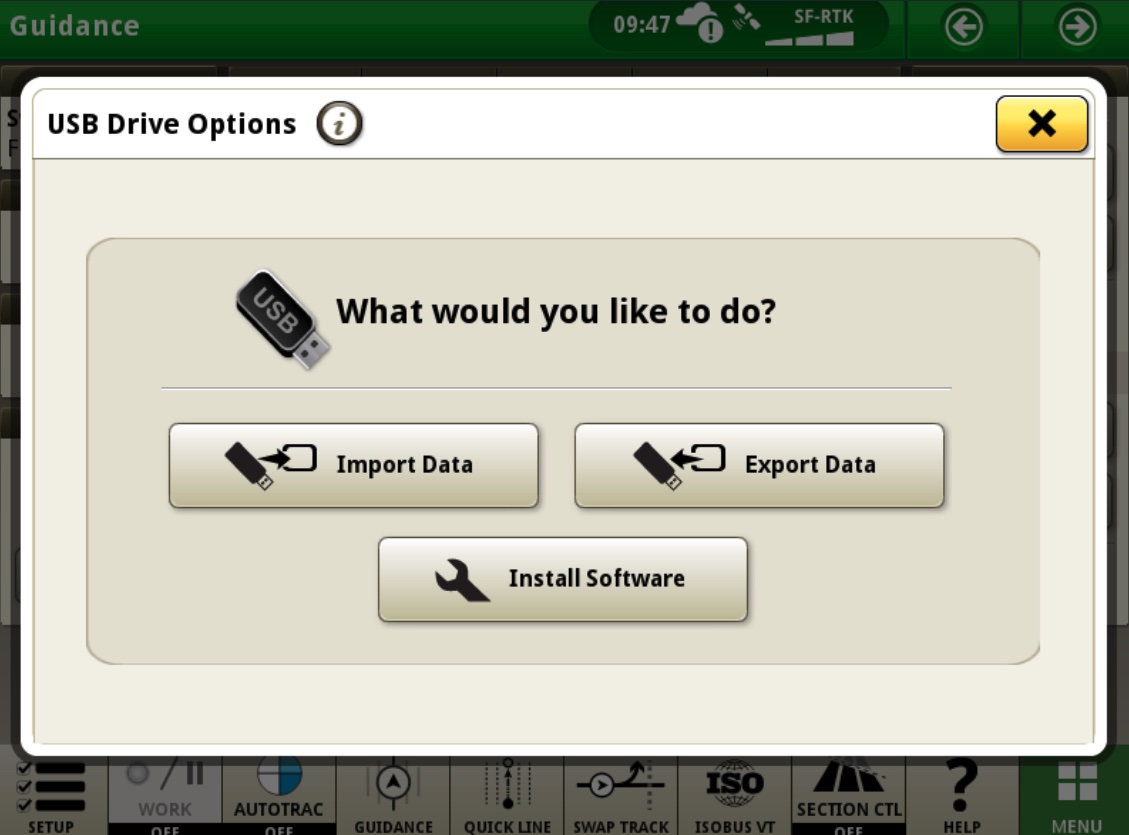
When prompted select “Import Data”
-
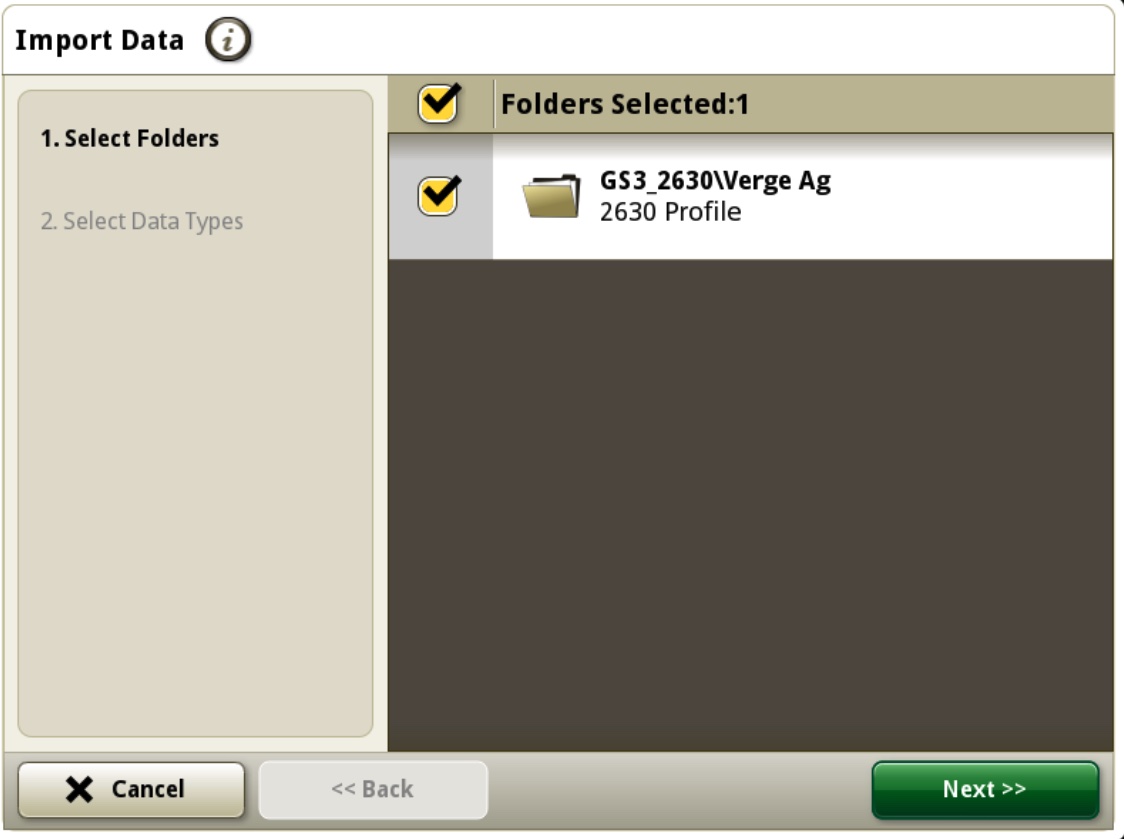
Select Next import form USB
-
Select the folder on the USB to be loaded and click Next
-
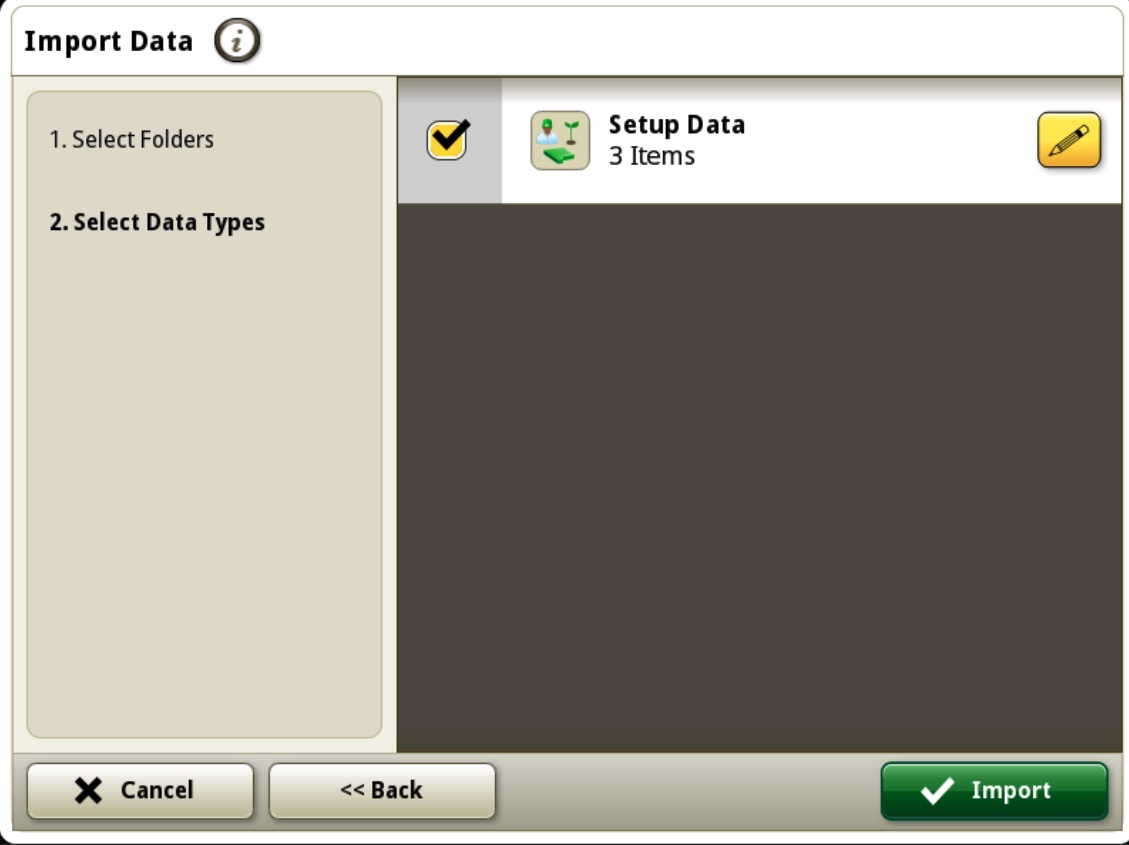
Select Import
-
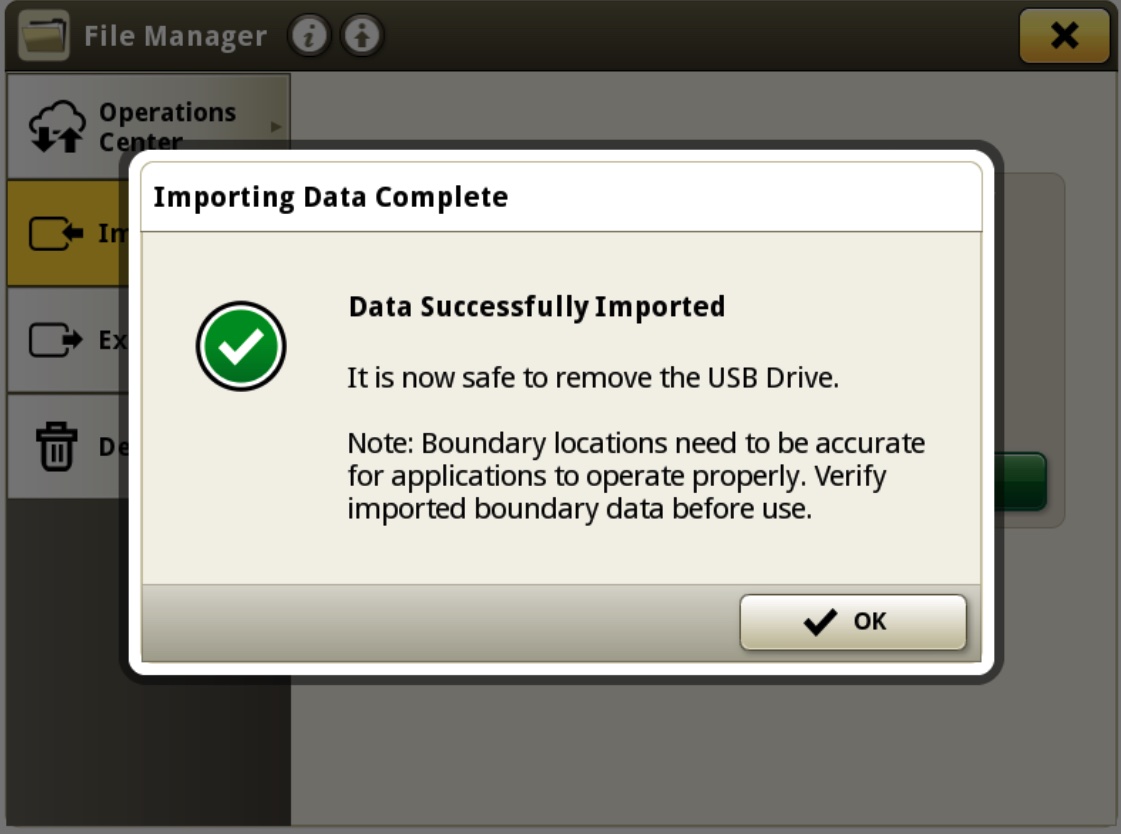
The system will prompt that the date was successfully imported. Click Ok
**Once this shows successful the data is now on the monitor. and you can close the File Manager and the USB import wizard on the monitor
How to Select the field(s) Imported
-
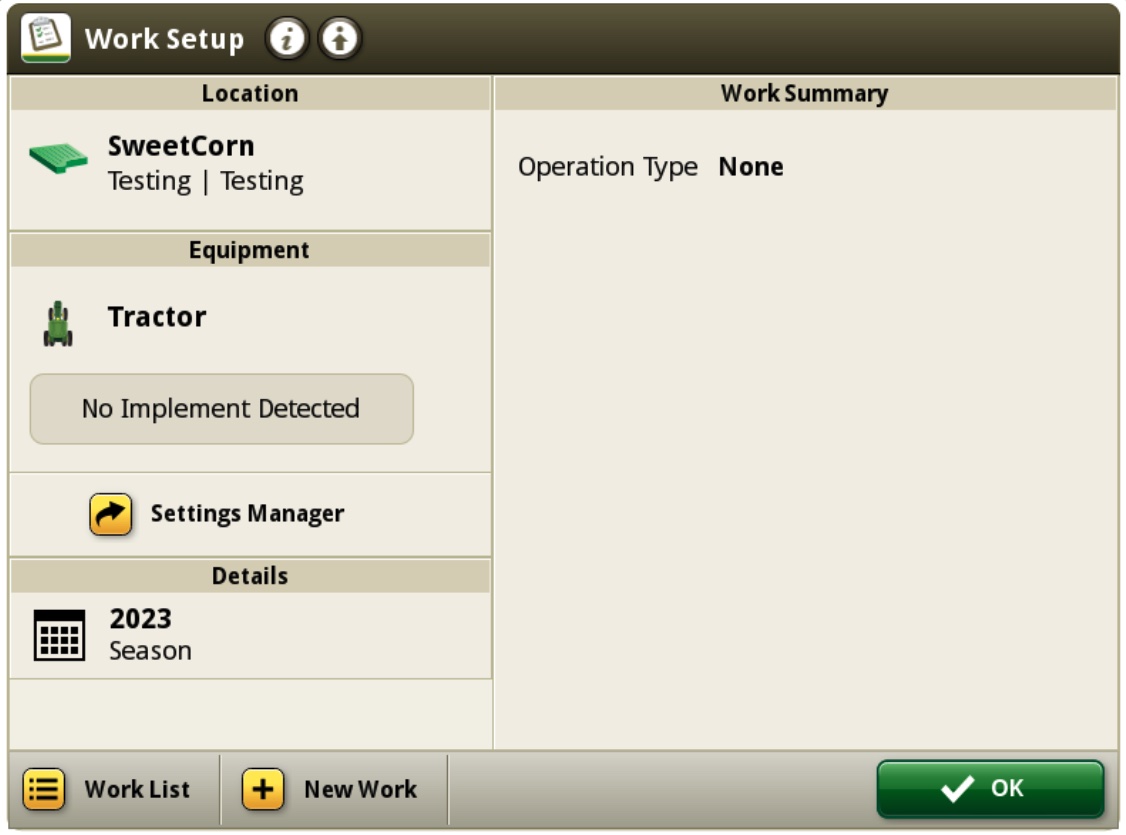
Select Setup
-
Click in Location Box
-
If you location you are looking for is not detected select the “View All” in the Lower left
-
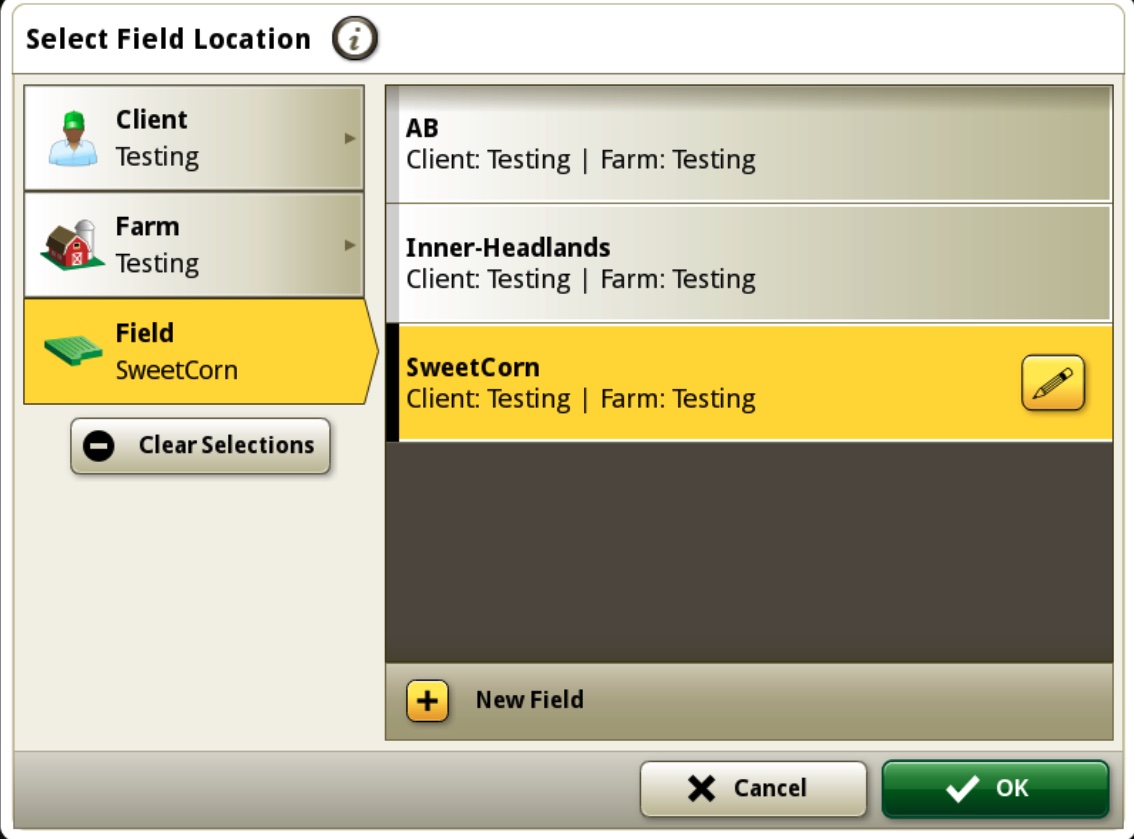
Select Clients/Farms/Fields - Select your Client, Farm , and Field that you wish to load
**NOTE: If you are not finding the correct field, make sure there are not multiple Client’s that are named the same or similar
-
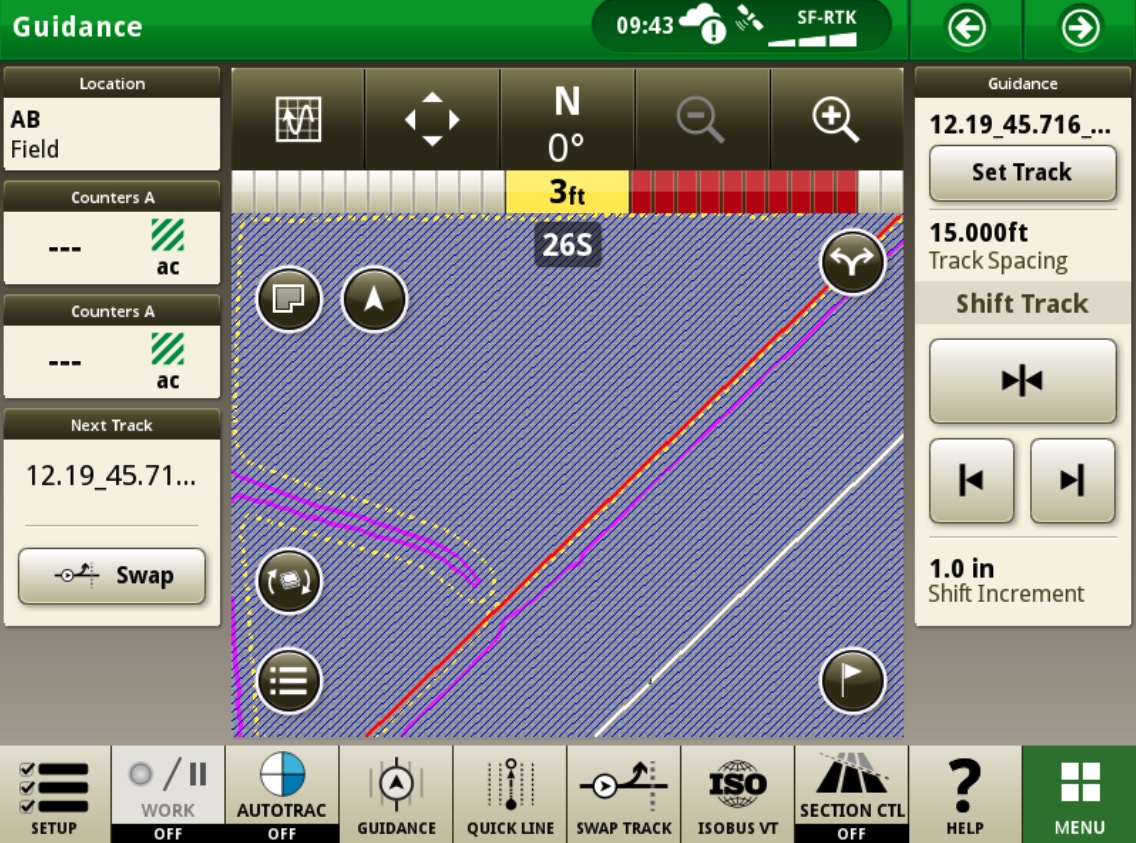
Select OK on your Work Setup page to exit the Setup Page - Depending on you export options, you should be able to see AB lines
- Users can Swap between lines with the Swap Track feature
Examples of how the export types from Launch Pad load in the monitor
Export AB Guidance
Export Inner Tracks and Headland Passes
Inner Tracks
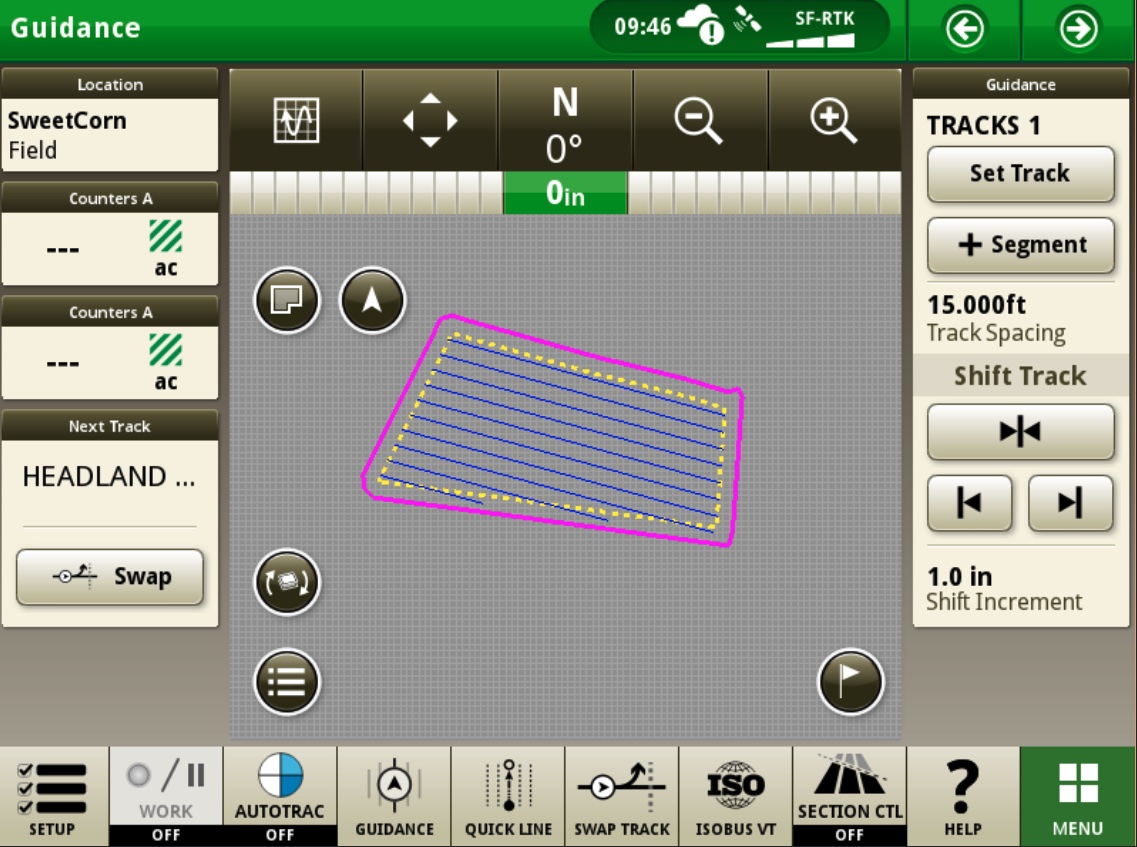
Headland Passes