Please follow the steps below to edit a Path Plan.
**To Edit a Path Plan
**
-
**Navigate to the Plans Page
**
-
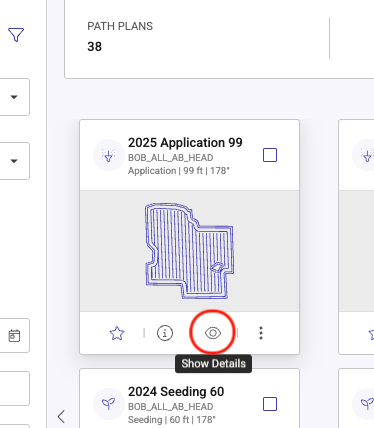
**Select the "Show Details" button at the bottom of the Plan tile
**
-
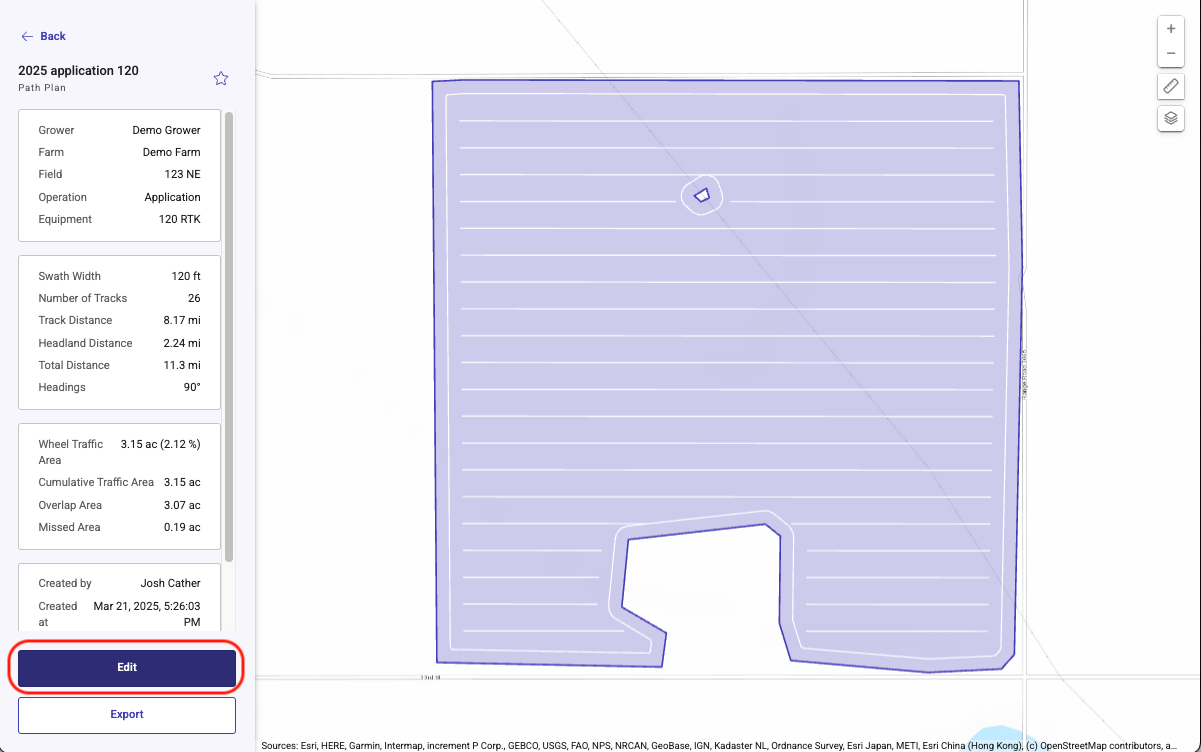
**Click on Edit in the lower Left
**
From the Edit page a user can Edit Input Parameters (Boundary, Operation, or Equipment Details) or Adjust Heading
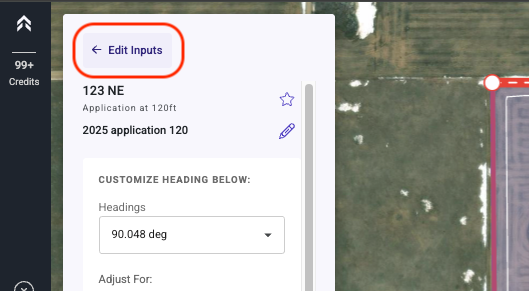
Edit Inputs
Select the Edit Inputs at the top left of the screen to change any of the following Input Parameters
Options for Input Parameters:
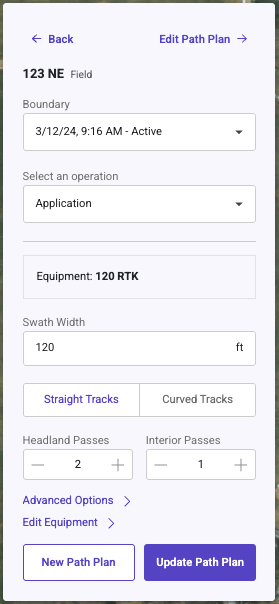
Boundary (If the field has multiple boundary options to choose from) (Requires user to select New Path Plan)
Change the Operation type (Requires user to select New Path Plan)
Change the Equipment (If the user has saved equipment for the selected operation type)
Swath Width
Straight or Curved Path
Number of Headland Passes
Number of Interior Passes
Advanced Options
Slopes
Use Passable
Extend Tracks
Once the Parameters have been updated, there are two options New Path Plan or Update Path Plan
New Path Plan: This will Save a new Path Plan keeping the original.
Update Path Plan: This will overwrite the original Path Plan with the new parameters
New Path Plan Cost: 1 Credit
Update Path Plan Cost: No Charge.
Original Plan will be overwritten


**
**
**Adjust Heading
**
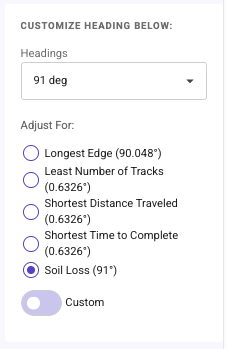
Options for editing the Plan Heading:
The Headings Dropdown to select any pre set options (0, 90, 45, 135, etc)
Select any of the calculated options
Longest Edge
Least Number of Tracks
Shortest Distance
Shortest Time
Soil Loss (If Slope is selected during the creation of the plan as an input)
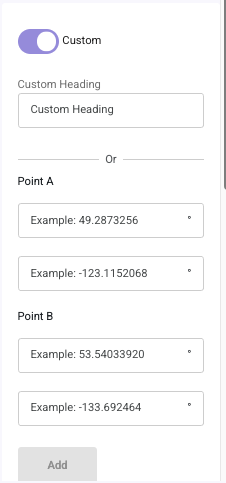
Select the Custom Toggle
Manually enter a heading up to 4 decimal places in accuracy
Enter the A and B Coordinates of a Reference line
Click Add to use the heading entered or the AB Reference line
Click Next to update the plan