Fields can be added to an organization by manually drawing the boundaries using the aerial background image as a guide. All edits/adds for fields are done on the Land Page. To get to the Land page select "Land" from the Menu items.

MyJohnDeere Operations Center Accounts: All edits made within Launch Pad will not sync back to Deere automatically.
To add a field to the launch Pad account by manually drawing
-
Navigate to the Land page by clicking Menu>Land
-
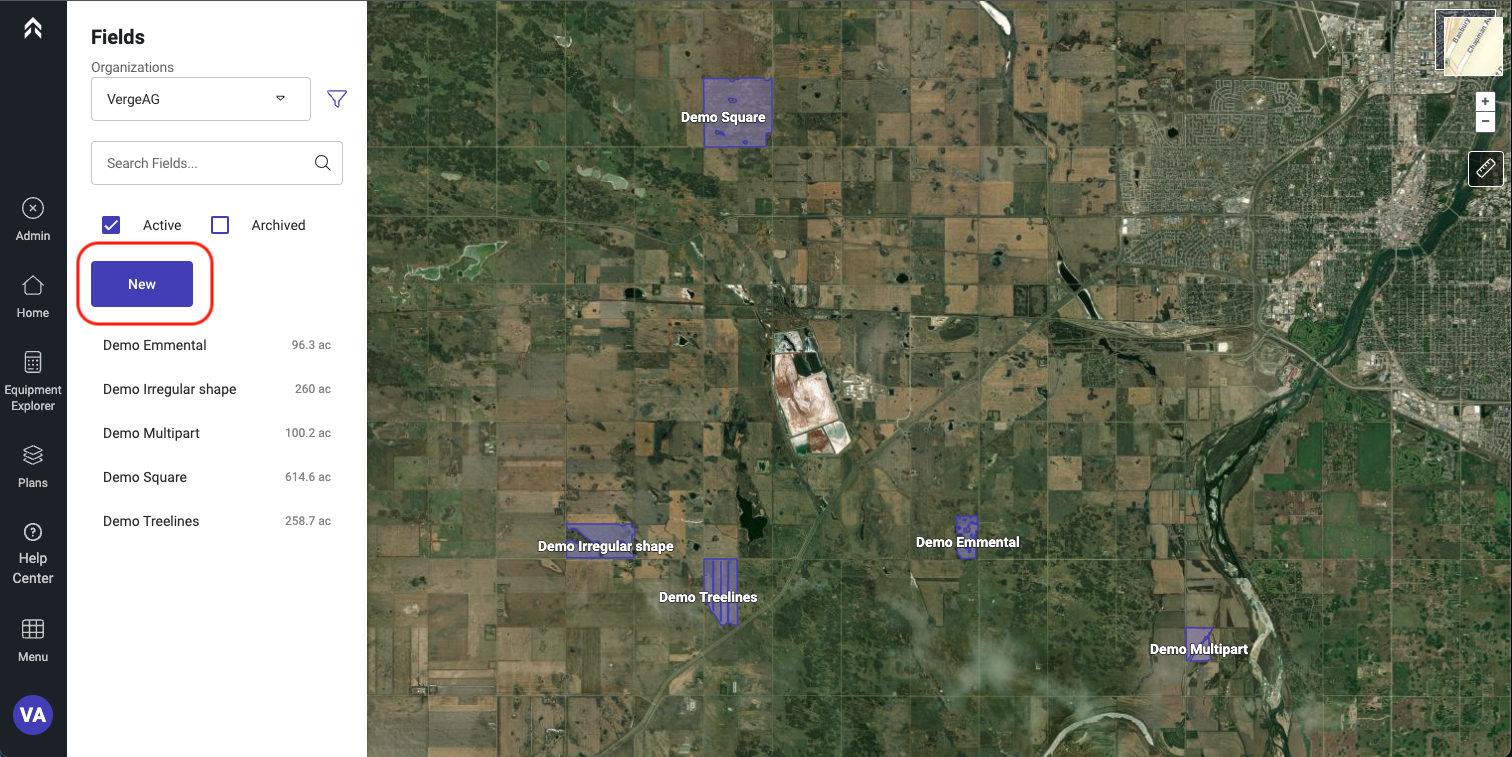
Click New
-
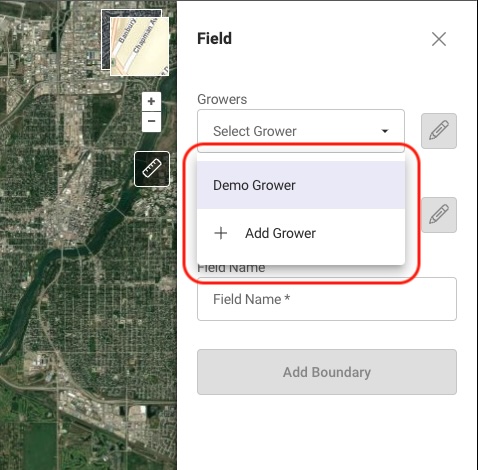
Select Existing or Add New Grower
-
To add a new Grower select the "+ Add Grower" from the bottom of the drop down list of Growers
-
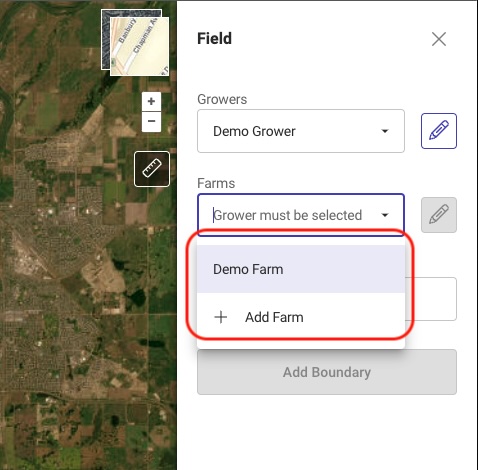
Select Existing or Add New Farm
-
To add a new Grower select the "+ Add Farm" from the bottom of the drop down list of Farms
-
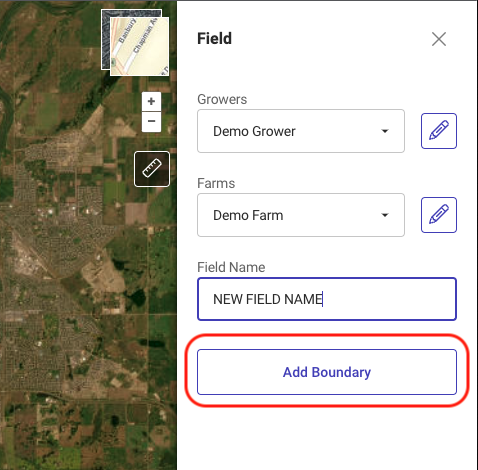
Enter Desired Field Name
-
Click Add Boundary
-
Navigate to the field area to be added
-
Click Add Shape
-
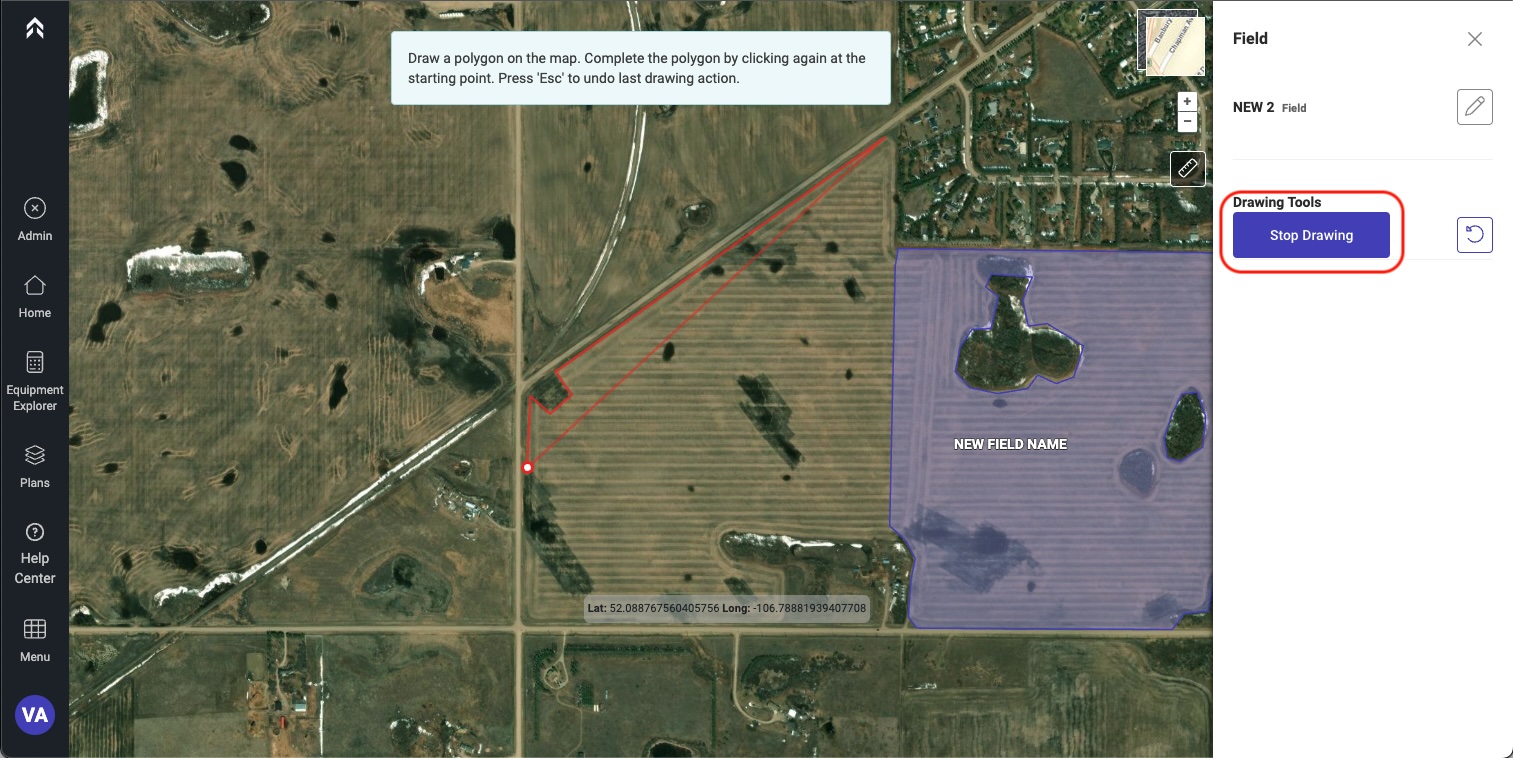
Each time you click a point will be added
-
When complete click again on the first point that was added Or click the Stop Drawing button.
-
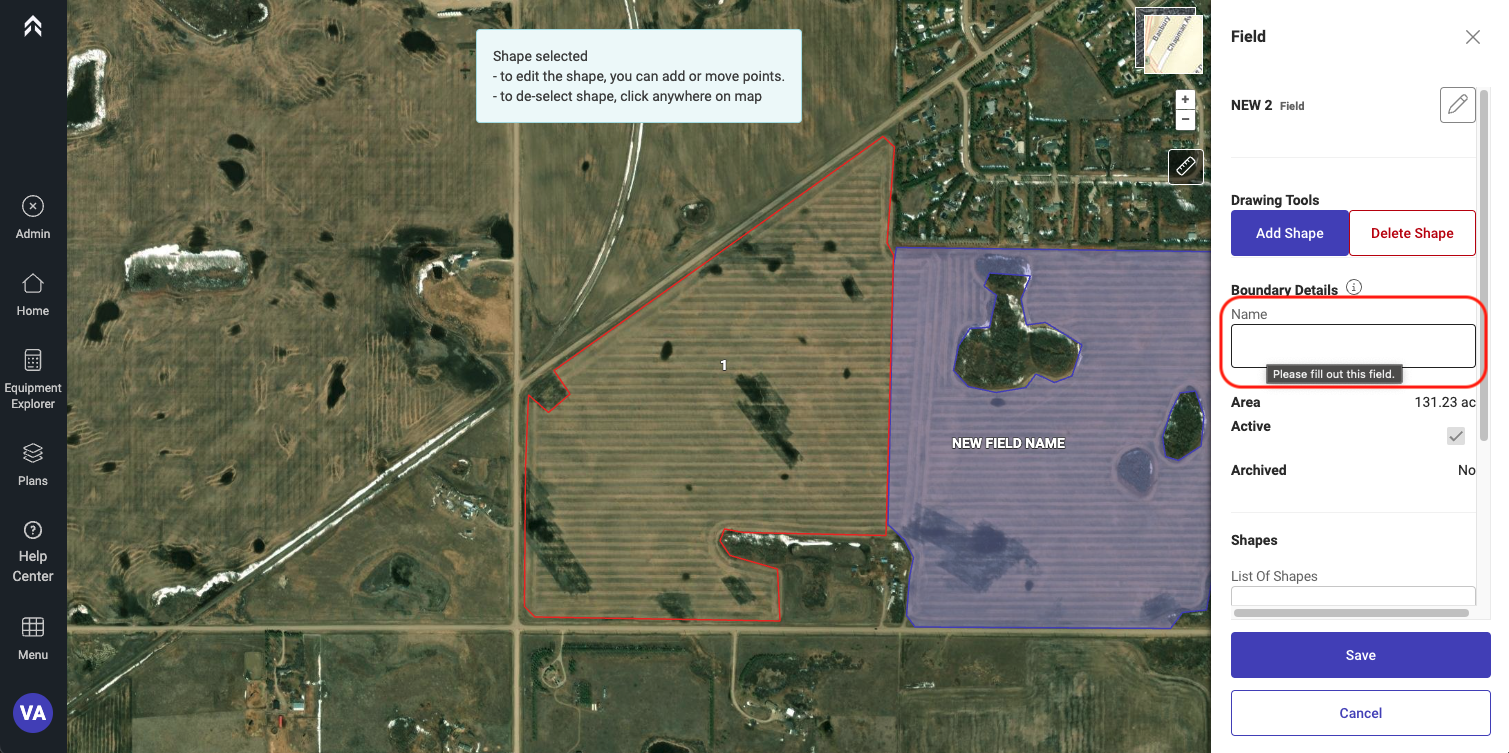
Enter a Name for the Boundary
-
If you would like to add a second polygon or an internal polygon click Add Shape button again and repeat the steps to draw.
-
When complete Click Save