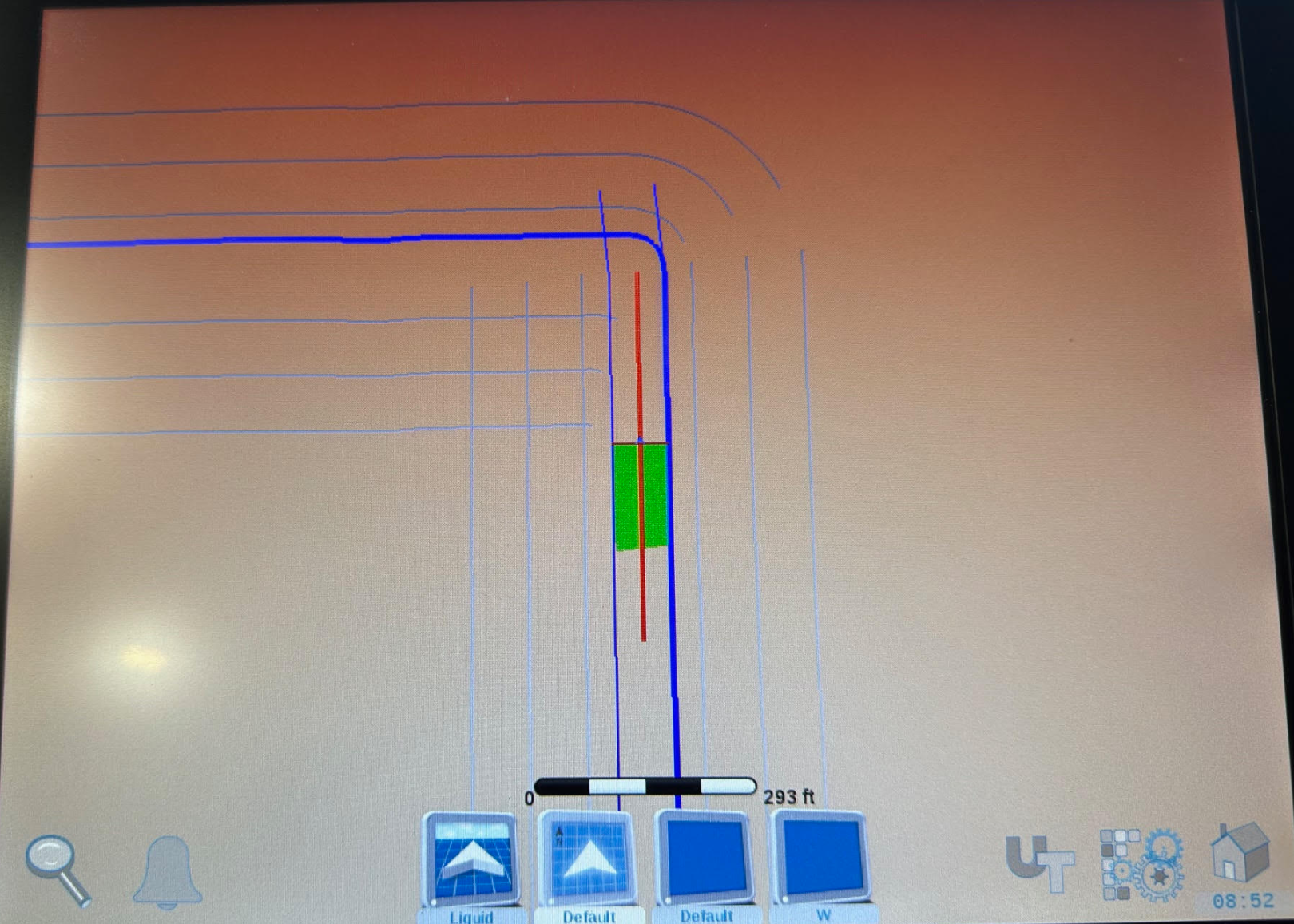
The procedure below shows how to load a setup file directly into a Viper 4/4+ monitor from the ISO XML export in Launch Pad.
-
Create and export the Path Plans from Launch Pad
-
Copy the extracted folder (Un Zipped) to the root directory of a USB to transfer to the monitor (Taskdata Folder)
-
Insert USB: Plug the USB drive into the port on the Viper 4 display.
-
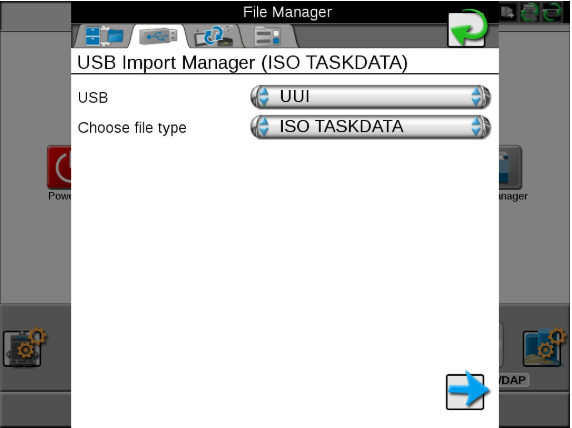
Access File Manager: On the Viper 4, go to the Administrator/User panel, then select File Manager.
-
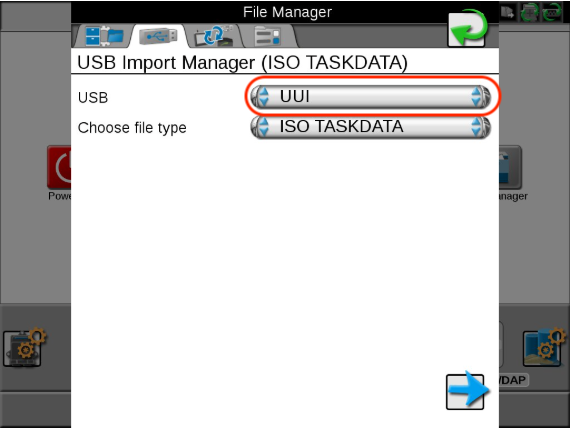
Select USB Import tab and select your USB drive from the dropdown menu.
-
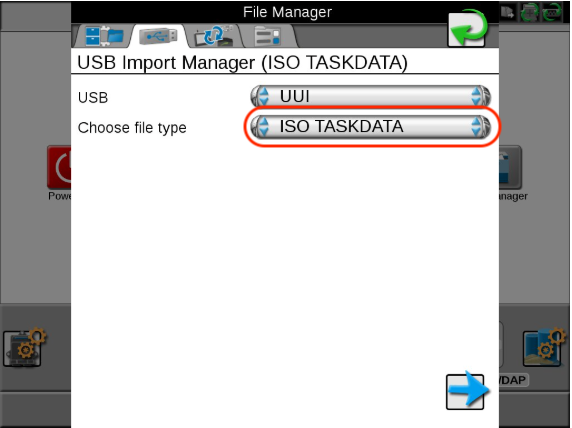
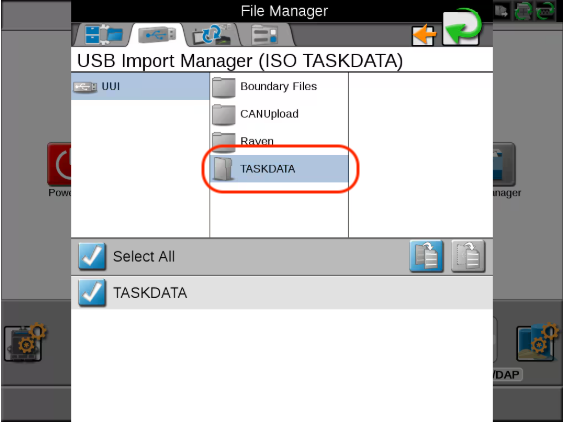
Choose File Type of TASKDATA and click the next arrow
-
Select the TASKDATA folder to be copied to the Viper and press the Copy button (two pieces of paper icon).
-
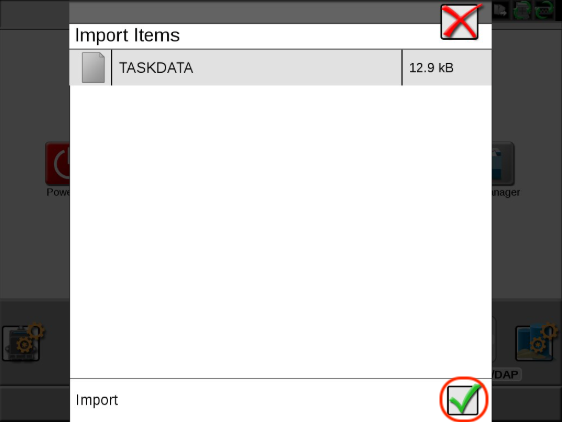
Confirm Import, A screen will show items to import; press the Green Checkmark to confirm.
-
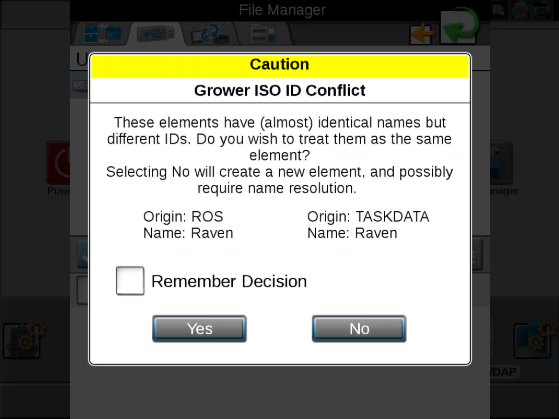
If a conflict occurs, select Yes to merge or No to create a new structure.
Loading/Starting a Job from the imported Taskdata
-
Navigate to the Administrator and select "Start Job".
-
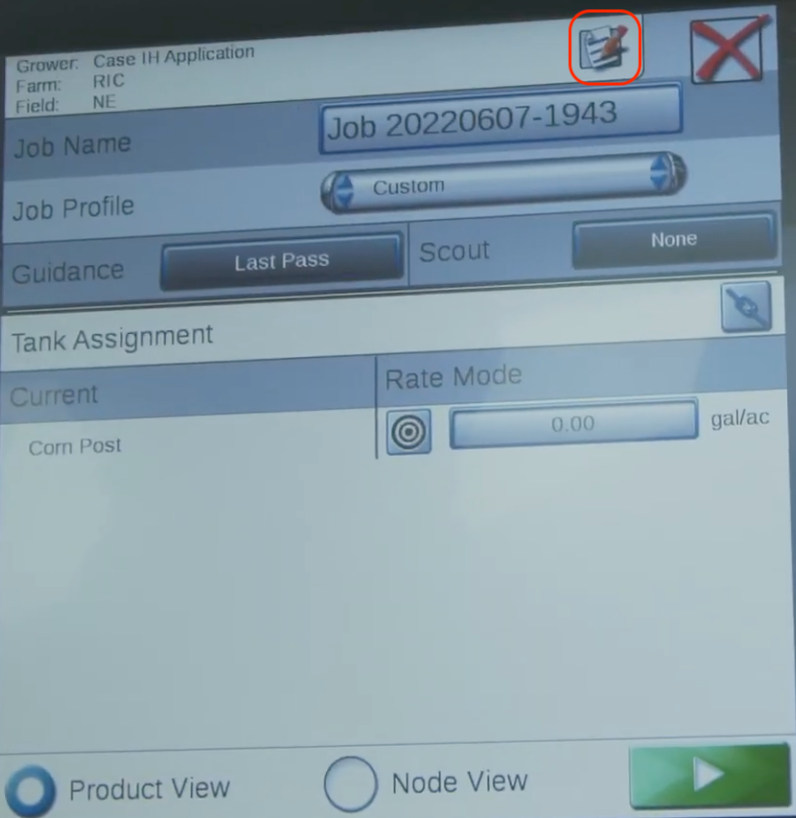
Select the "Edit" button in the u on the profile screen select Grower, Farm, and Field that was loaded from the Taskdata.
-
Start: Tap the green "Play" button in the bottom right to load the run screen.
-
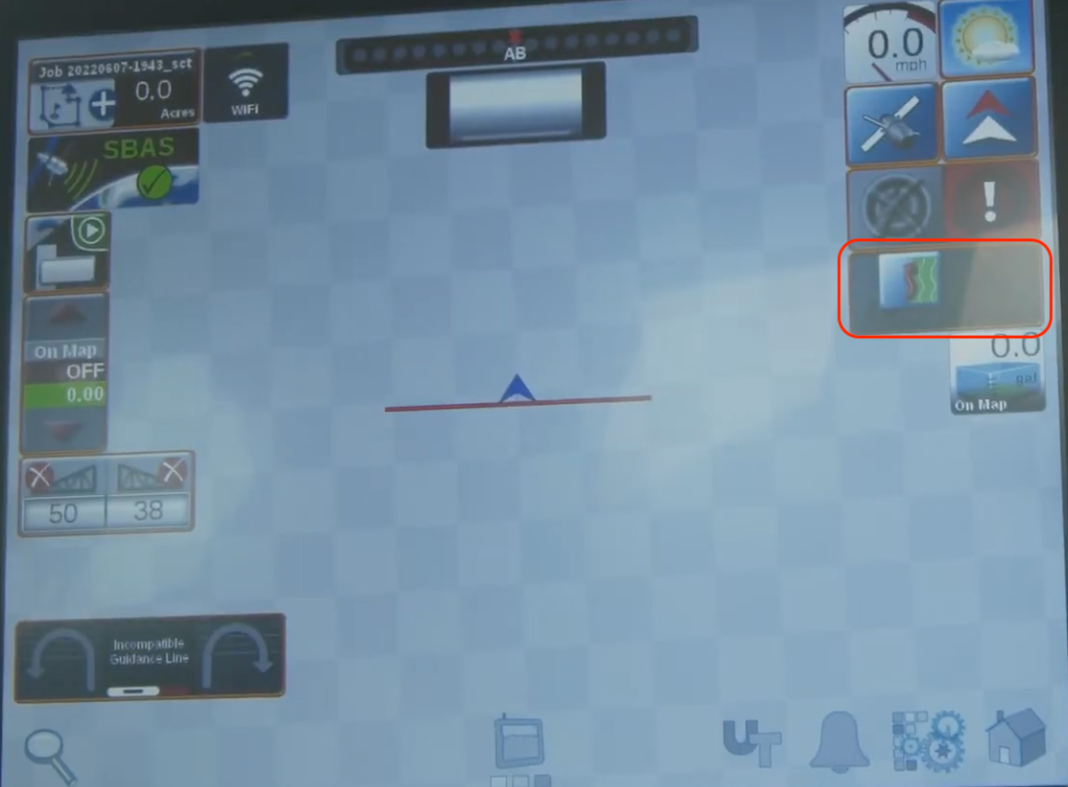
On the Main run screen press and hold the Guidance Line button
-
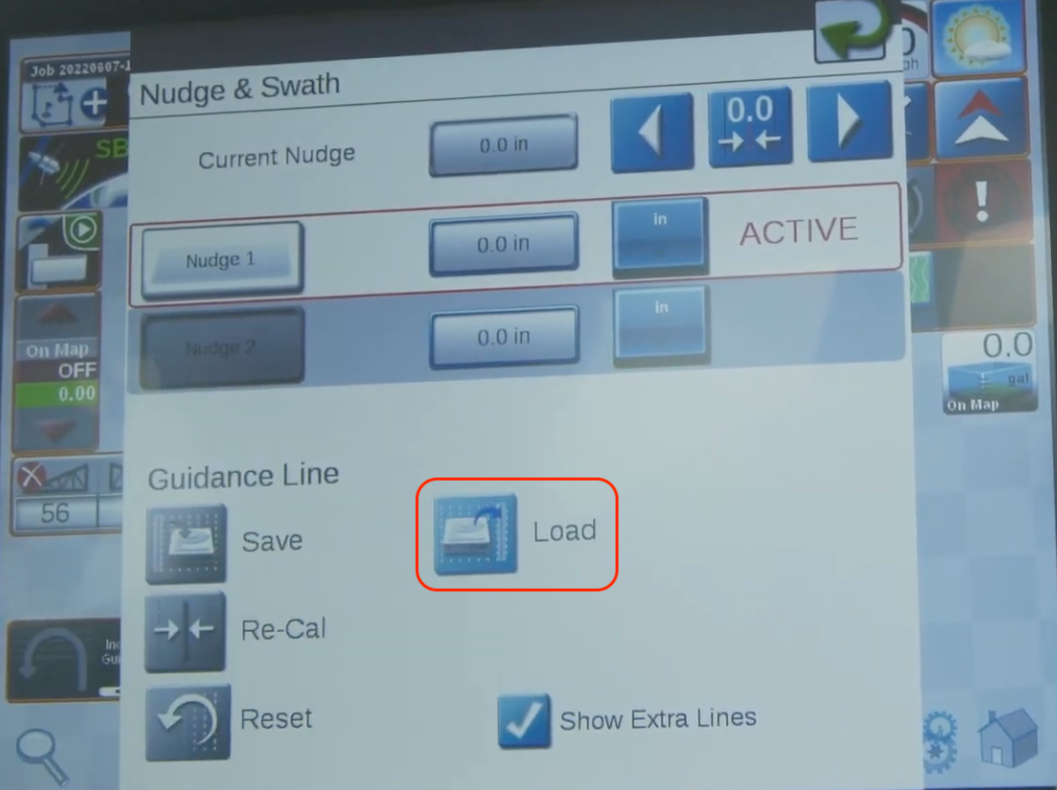
Select Load
-
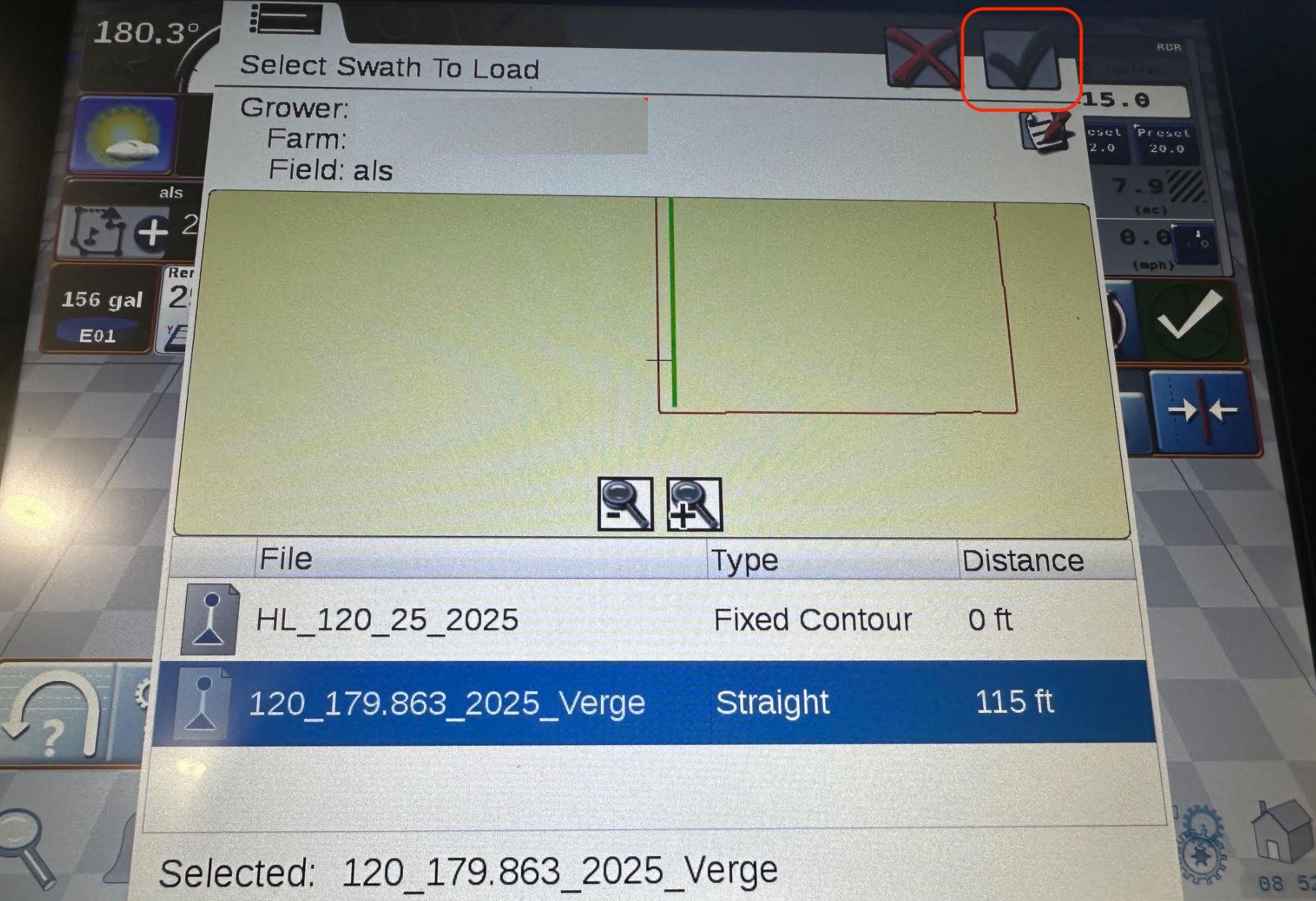
Select Guidance line to load and click the Green check in the upper right


-
Guidance line will show on the map