
As a grower I would like to use Elevation help drive the optimal guidance. We utilize a digital elevation model to obtain the topography of a field. We then Analyze and give the user a layer to visualize slope changes along the pass lines. Not only can this help identify optimal guidance to reduce Soil Erosion, it can also show some potential problem location if you have machine limitations for traversing on slopes.
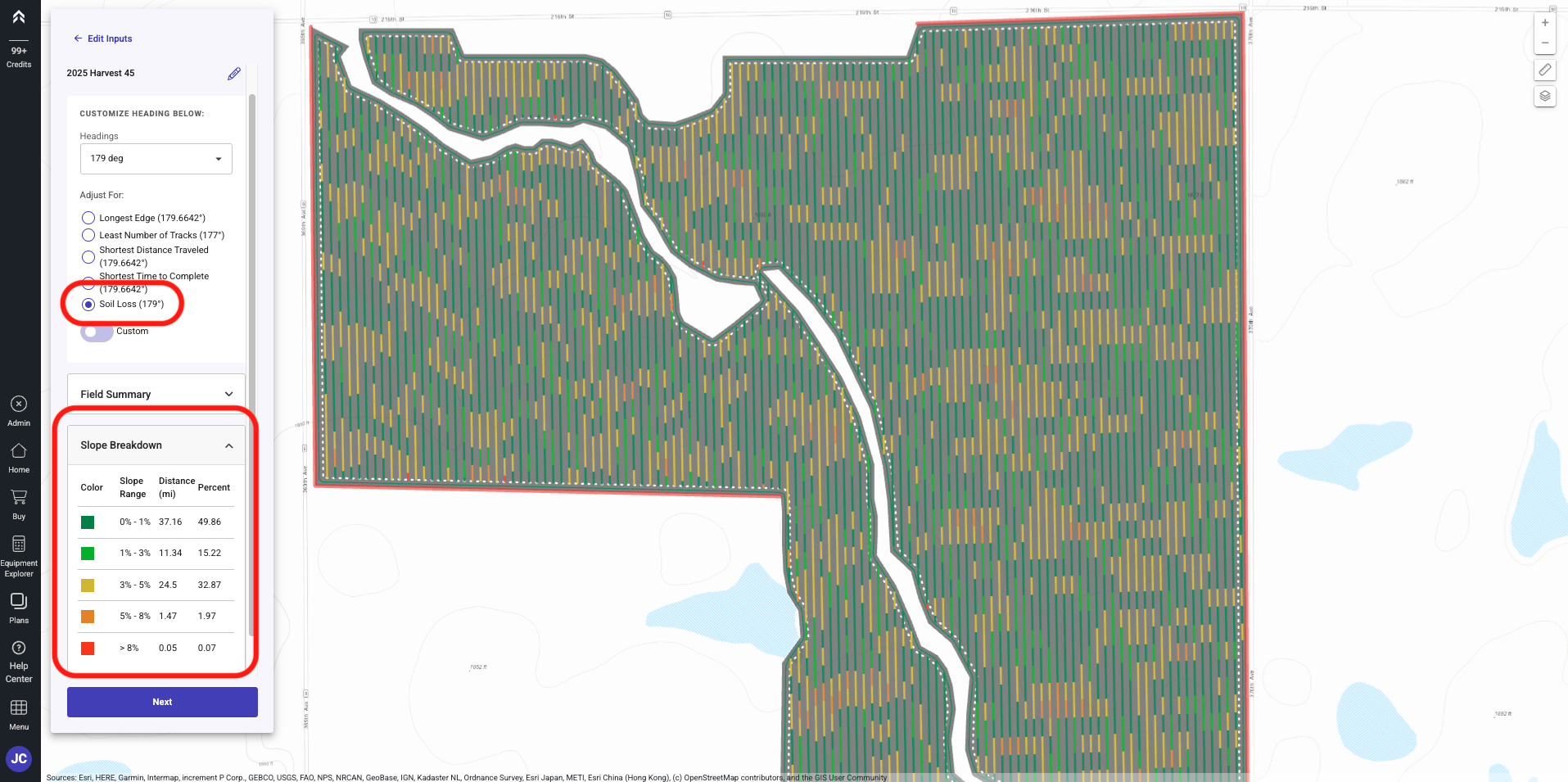
To generate a Path Plan utilizing the Slope feature please follow the steps below.
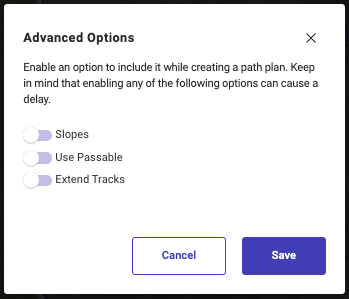
 Be sure to toggle "Slope" on under Advanced Options in step 9.
**Generate Path Plan from the Home Page
**
-
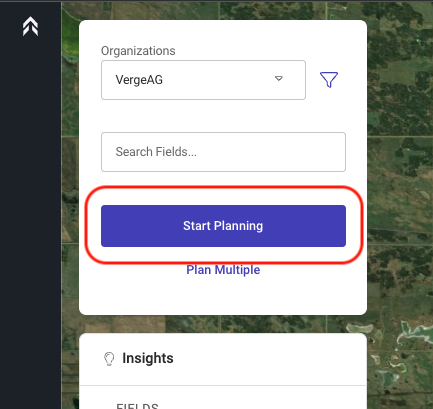
Click on the "Start Planning" button
-
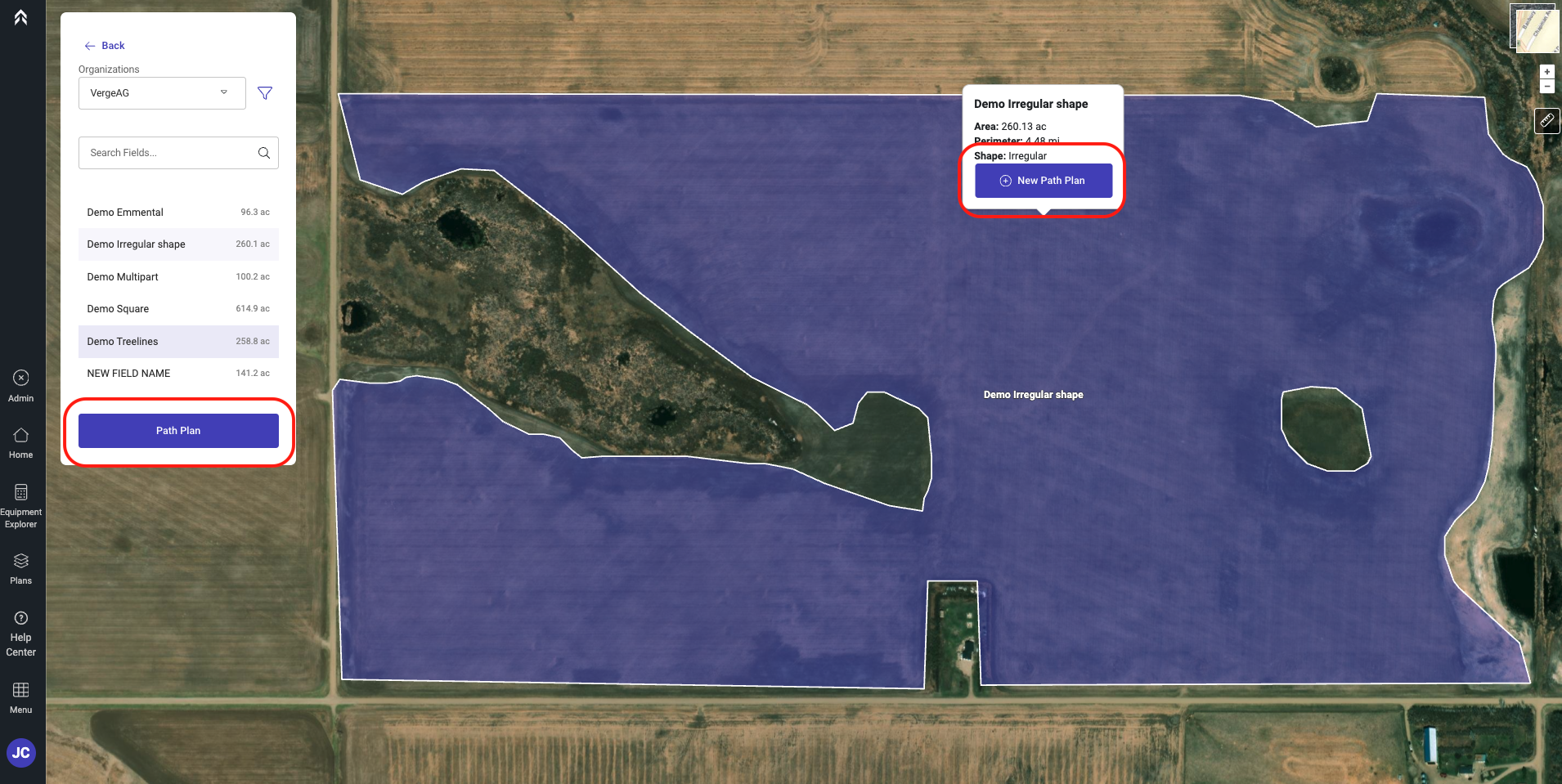
Select the field you would like to create a Path Plan for
-
Click either the Path Plan button or the New Path Plan button
-
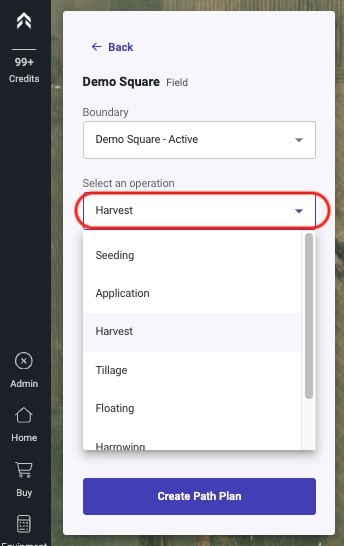
Select the operation type
-
Select the equipment from the Drop down
- This list will display all equipment in the users saved equipment for the operation type selected above. -
Enter the Swath Width
- A custom width can be entered to be used during the generation of the Plan -
Select number of Headland/Perimeter passes
-
Select the number of Interior Passes. (Number of passes around internal obstacles)
-
Optional: “Advanced Options” allows you to Edit Features used during the creation of the Path Plan.
-
Click Create Path Plan
-
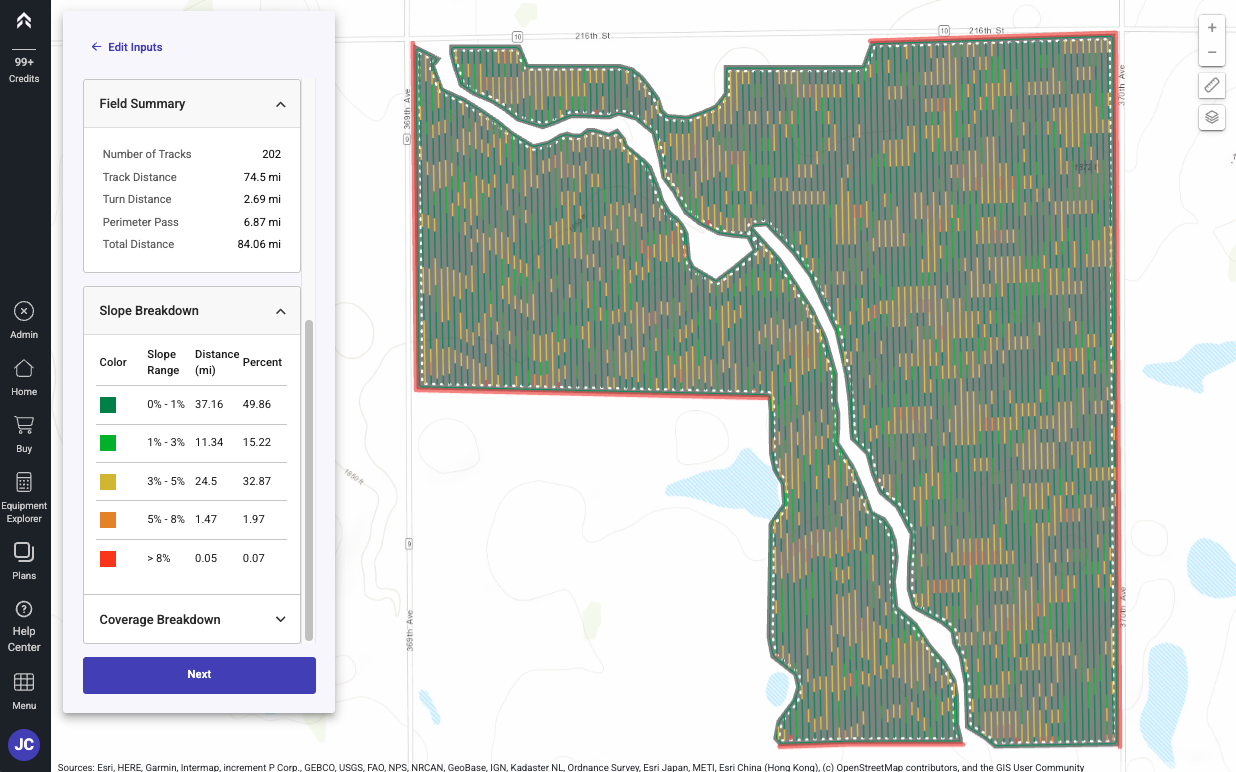
The Path Plan will generate with our Slope feature enabled showing the Slope change throughout the tracks
-
The Path Plan will be displayed with the optimal guidance line by default
-
The Path Plan is auto saved and available in the Plans page
-
You as a user have the ability to choose any angle you would like
-
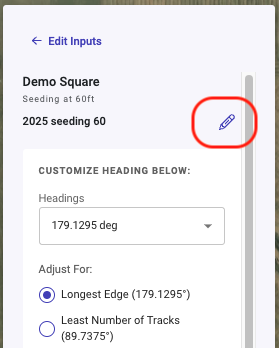
If you would like to change the default Path Plan name, Click the pencil icon next to the default name.
-
Click Next to proceed to the options following the creating of the Path Plan
-
Next Plan: Plan the next field from the dashboard
-
Plan From: Create a new Plan with Seasonal adjustments
-
Share: Create a link that can be shared to anyone
-
Export: Download the plan that was just generated