Admin Orders Page
In order to make a Launch Pad Order the account has to have both Admin access and Order Admin access.
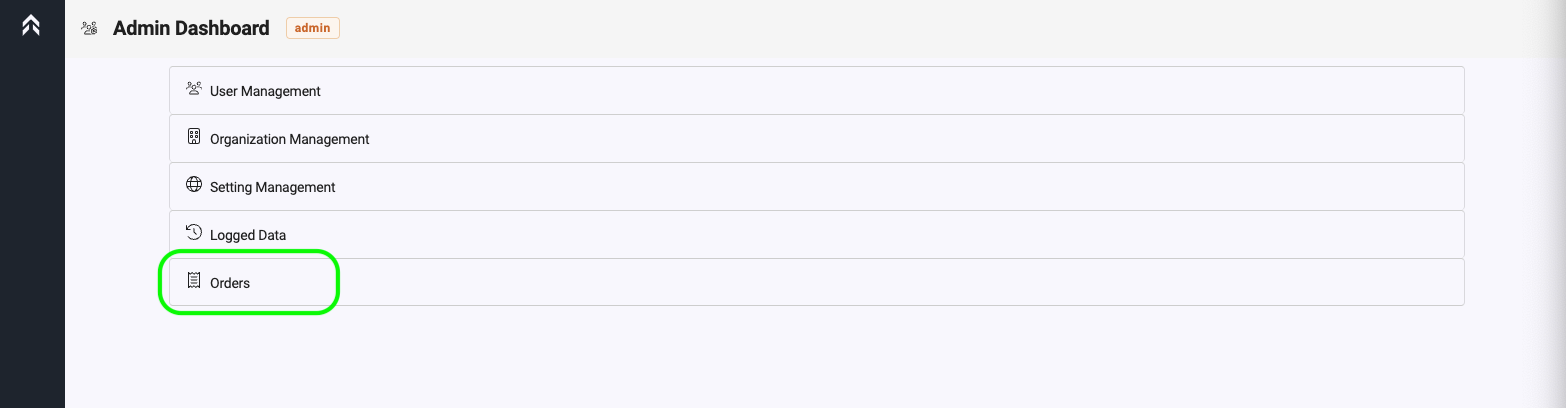
To get to the Orders page Click Menu>Admin, This will take you to the Admin Dashboard
Order Management - Overview
The order management page provides a general overview for all orders that have been recorded in the system. This list is sorted most recent first.
The filters available are:
-
User (billing account owner)
-
Order Type
-
Payment Status
-
Currency
-
Created Date
These filters allow admin users to refine the list of orders to answer questions as they see fit.
Order Management Table
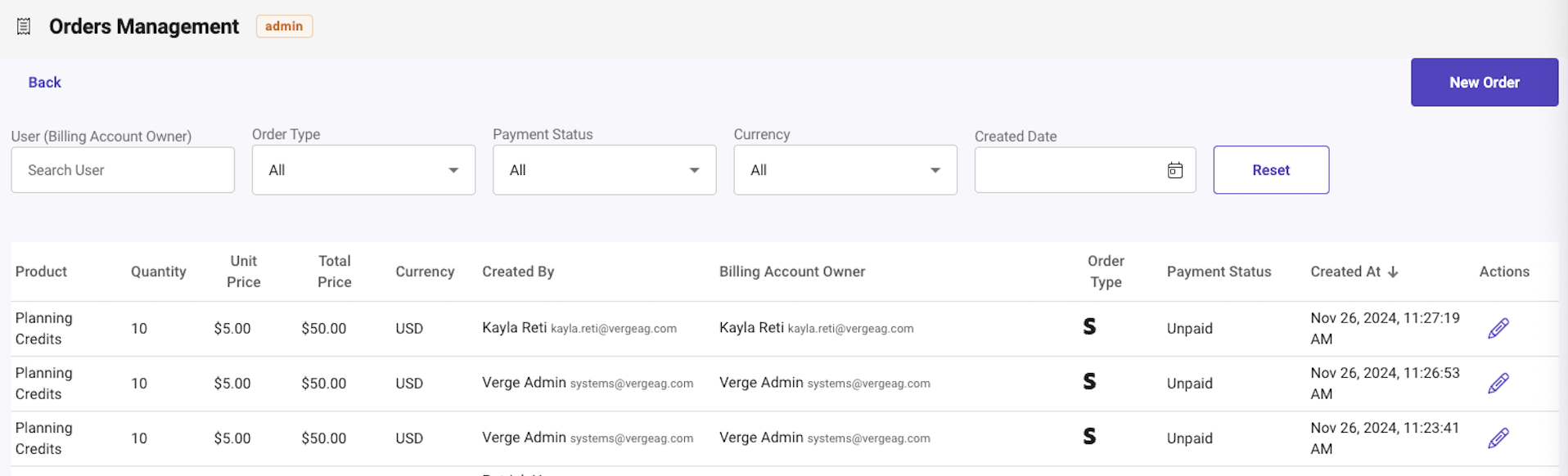
The order management table is broken up into the following columns and is similar to the user order history table;
-
Product: Currently we only have Planning Credits
-
Quantity: Represents the number of credits purchased
-
Unit Price: Cost per unit
-
Total Price: Total amount paid
-
Currency: Currently only option is USD
-
Created By: Who created the Order
-
Billing Account Owner: What billing account the credits are for
-
Order Type
-
Launch Pad Order: Orders that were paid outside the self serve credit card transaction
-
Gift: Used when credits are have been given to a user
-
Trial: Allows credits to be given and keep in Trial mode
-
Adjustment: This order type is to adjust a credit balance. For example, a user wanted a refund we could reduce the credits to relect credits used. A negative value will reduce the credits.
-
Payment Status: Shows if payment is required
-
Created At
-
Actions
-
Edit
-
Order Summary
Creating a Launch Pad Order
Creating a Launch Pad order is initiated by clicking the New Order button in the top right corner of the Orders Management page. This opens the Create Order modal.
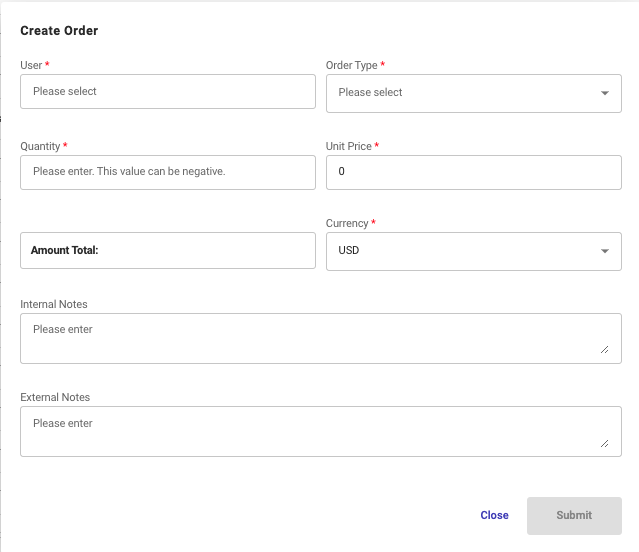

There are a number of inputs on the Create Order modal. The required inputs are designated by a red star *, and must be entered to proceed with the order.
User (Required)
Choosing a user for which to create an order is accomplished by type ahead drop down, and clicking on the intended name from the dropdown.

Ensure you have the right user as we support duplicate emails from integrations
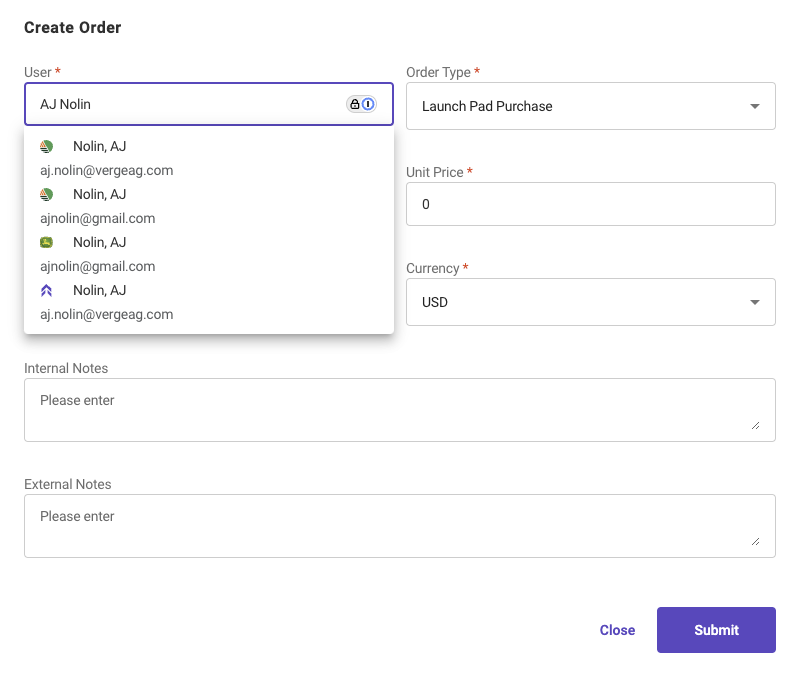
When choosing a user that has already made a purchase the interface will change to a version where we display the credits available, credits used, and credits purchased.

Order Type (Required)
There are four different order types that can be chosen for a Launch Pad Order: Launch Pad Purchase, Gift, Trial, and Adjustment.
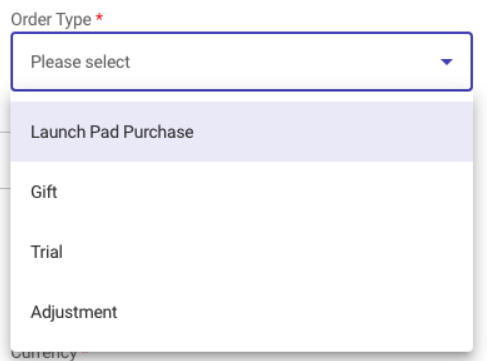
-
Order Types:
-
Launch Pad Order: Orders that were paid outside the self serve credit card transaction
-
Gift: Used when credits are have been given to a user
-
Trial: Allows credits to be given and keep in Trial mode
-
Adjustment: This order type is to adjust a credit balance. For example, a user wanted a refund we could reduce the credits to reflect credits used. A negative value will reduce the credits.
Quantity (Required)
The quantity input is meant to specify the number of credits to be purchased. This number can either be a positive or negative number, and must be an integer (Cannot be a fraction).
Unit Price (Required)
The unit price is the price per planning credit that is to be assigned to the order.
Amount Total
The total amount is a calculated dollar value based on the quantity and unit price. If a negative quantity is entered a negative dollar amount will be reflected on the order and in the database.
Currency (Required)
Allows the user to choose the currency of the order.
*NOTE: This feature is not yet available, but is planned for a future release.
Internal Notes
The internal notes input box allows the admin user to enter notes about the order that can be recalled at a later date. Internal notes will only be visible to Verge Administrators, via the order details summary.
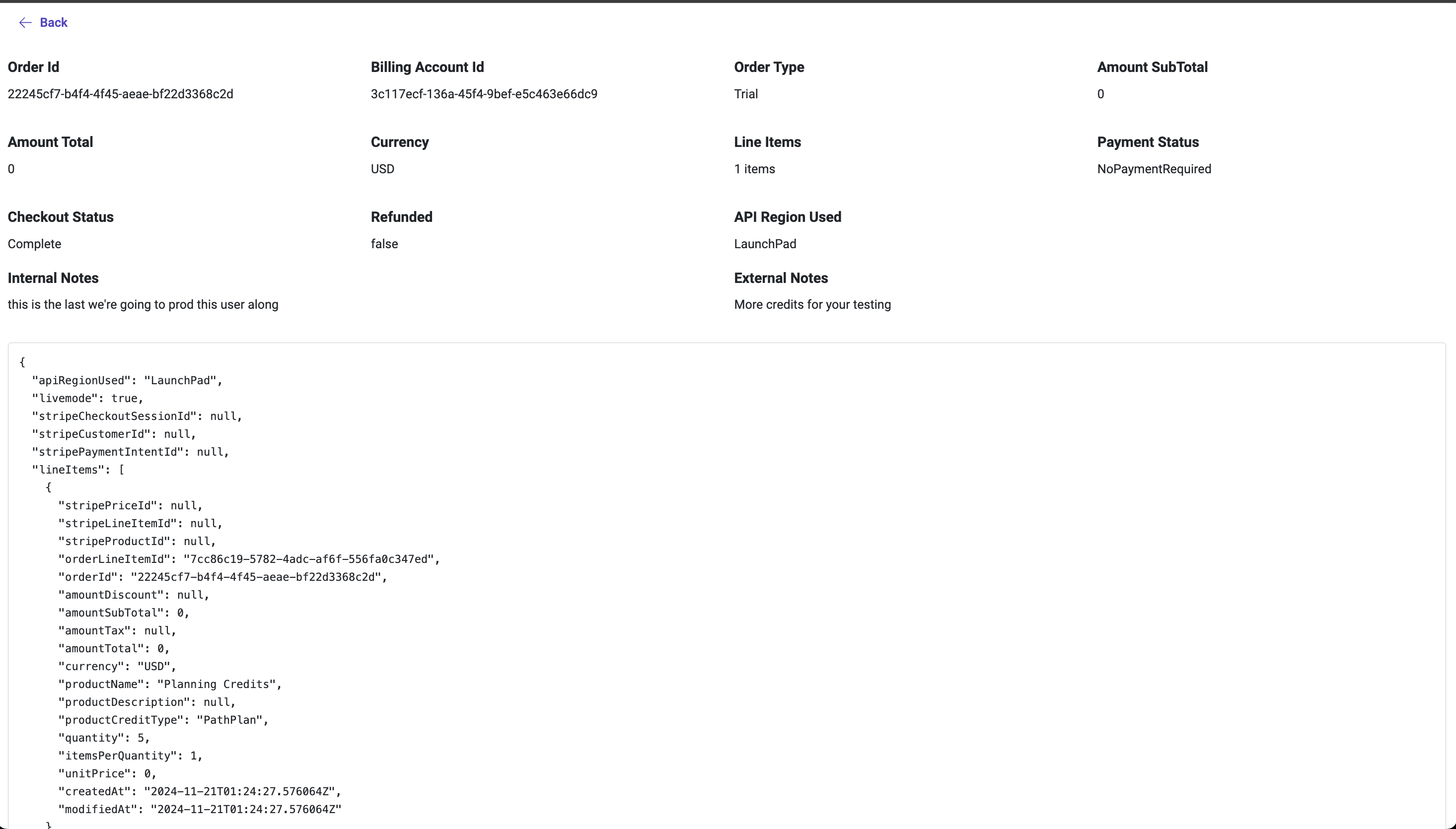
Always add an internal note for order types of Gift, Trial, and Adjustment
External Notes
The external notes input box allows the admin user creating a launch pad order to add comments or notes that will be visible to the user on the order details retrievable from the order history page.
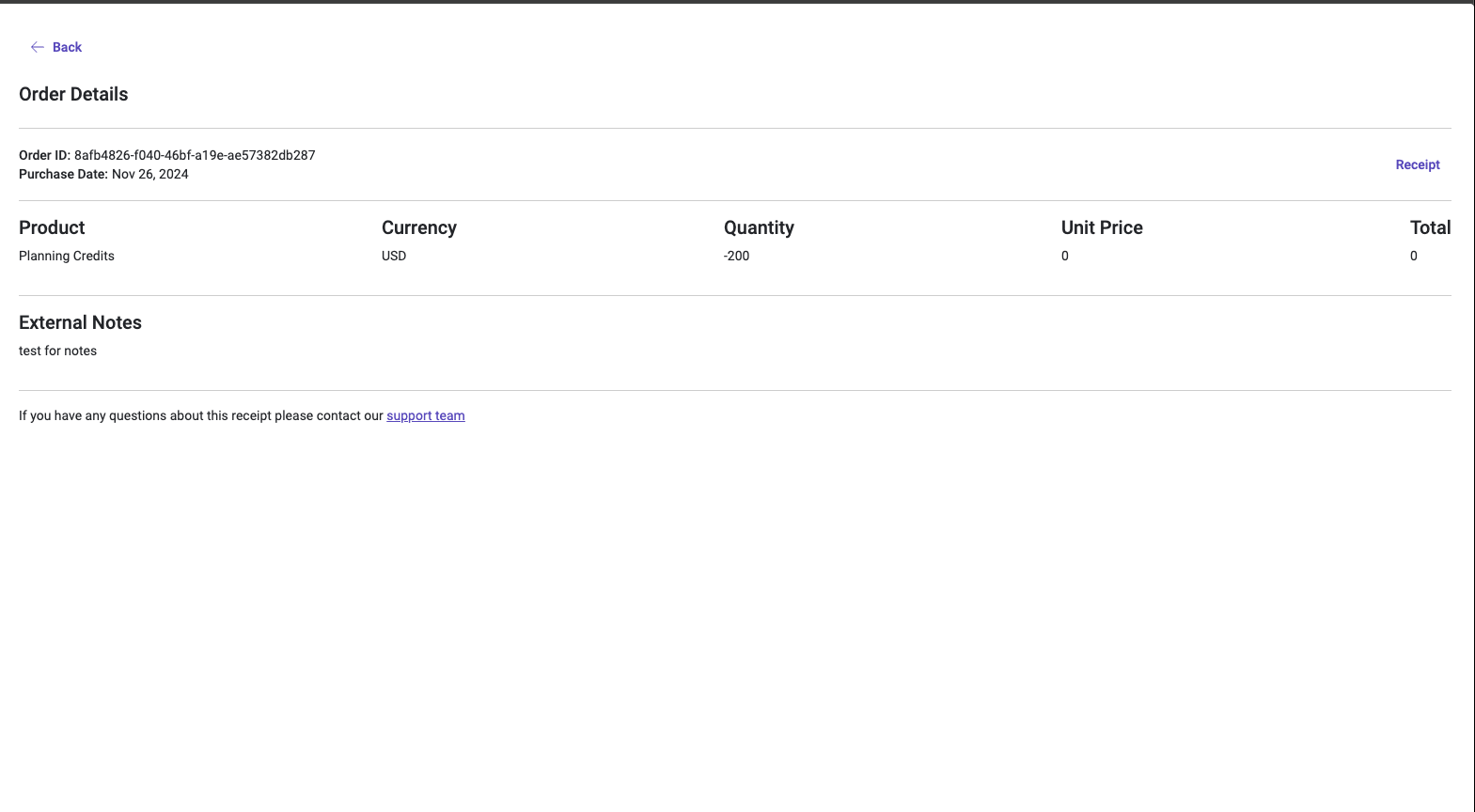
Order History - User Profile
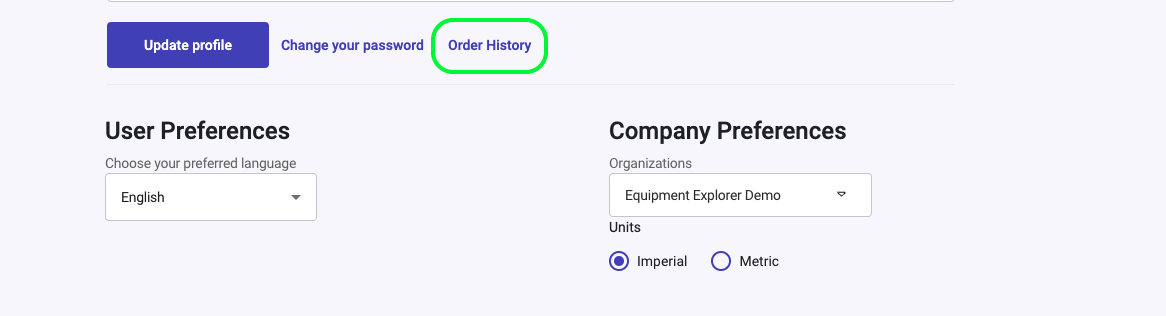
In order to provide transparency to the user every transaction resulting in an positive or negative change to an account balance, is recorded in order history. There are two ways to view order history, as a user, and as an admin. In the user profile, right next to the text link to change their password, there is a new link to view a users order history.
The users order history will look as follows:
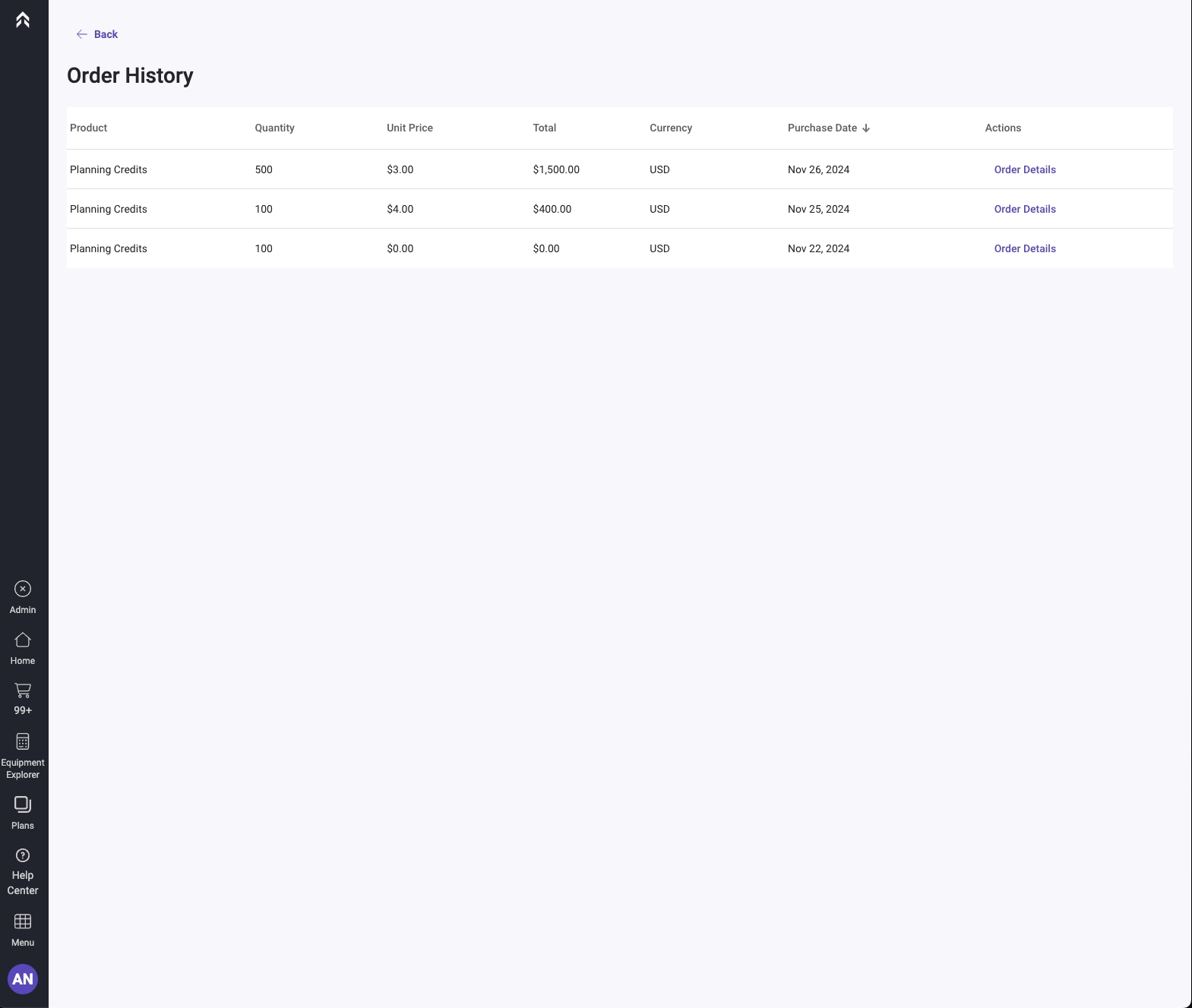
The order history for a user shows the following columns:
-
Product: Currently we only have Planning Credits
-
Quantity: Represents the number of credits purchased
-
Unit Price: Cost per unit
-
Total Price: Total amount paid
-
Currency: Currently only option is USD
-
Purchase Date: Date the order was made
-
Actions
-
Order Details
-
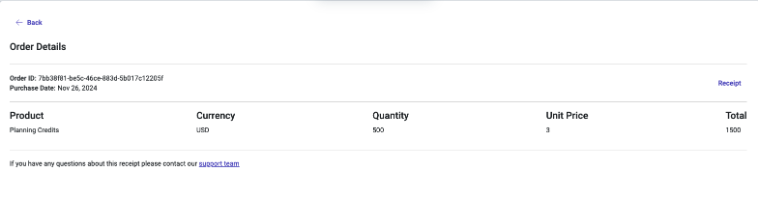
The order details allow for customer success and the user to track the transaction via the Order ID. This page is also printer friendly for those interested in printing PDFs. Included in this order detail is a link to contact our support team which opens the default in-app contact form.
-
Receipt:
-
The order details also provides the user an opportunity to recall the stripe generated receipt that they would have received via email at the time of purchase after a self serve credit card purchase