Fields can be added to an organization by using the Select Boundaries Tool. Where the tool has coverage a user can select a boundary generated from satellite imagery. All edits/adds for fields are done on the Land Page. To get to the Land page select "Land" from the Menu items.

MyJohnDeere Operations Center Accounts: Fields created from the Select Boundaries Tool within Launch Pad will not sync back to Deere automatically.
To add a field to the launch Pad account by using the Select Boundaries Tool
-
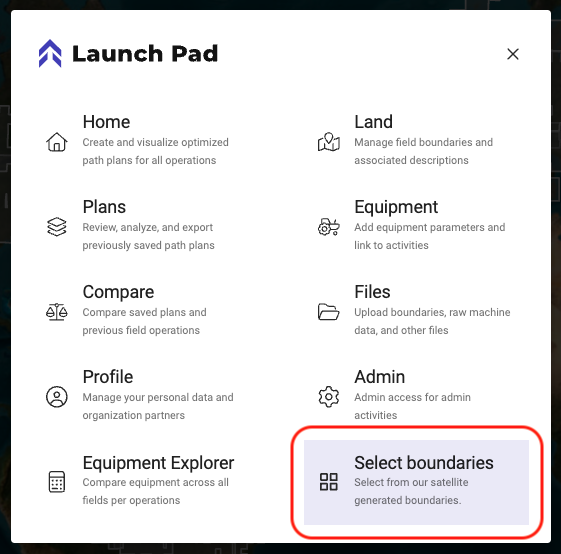
Navigate to the Select Boundaries tool by selecting Menu>Select Boundaries
-
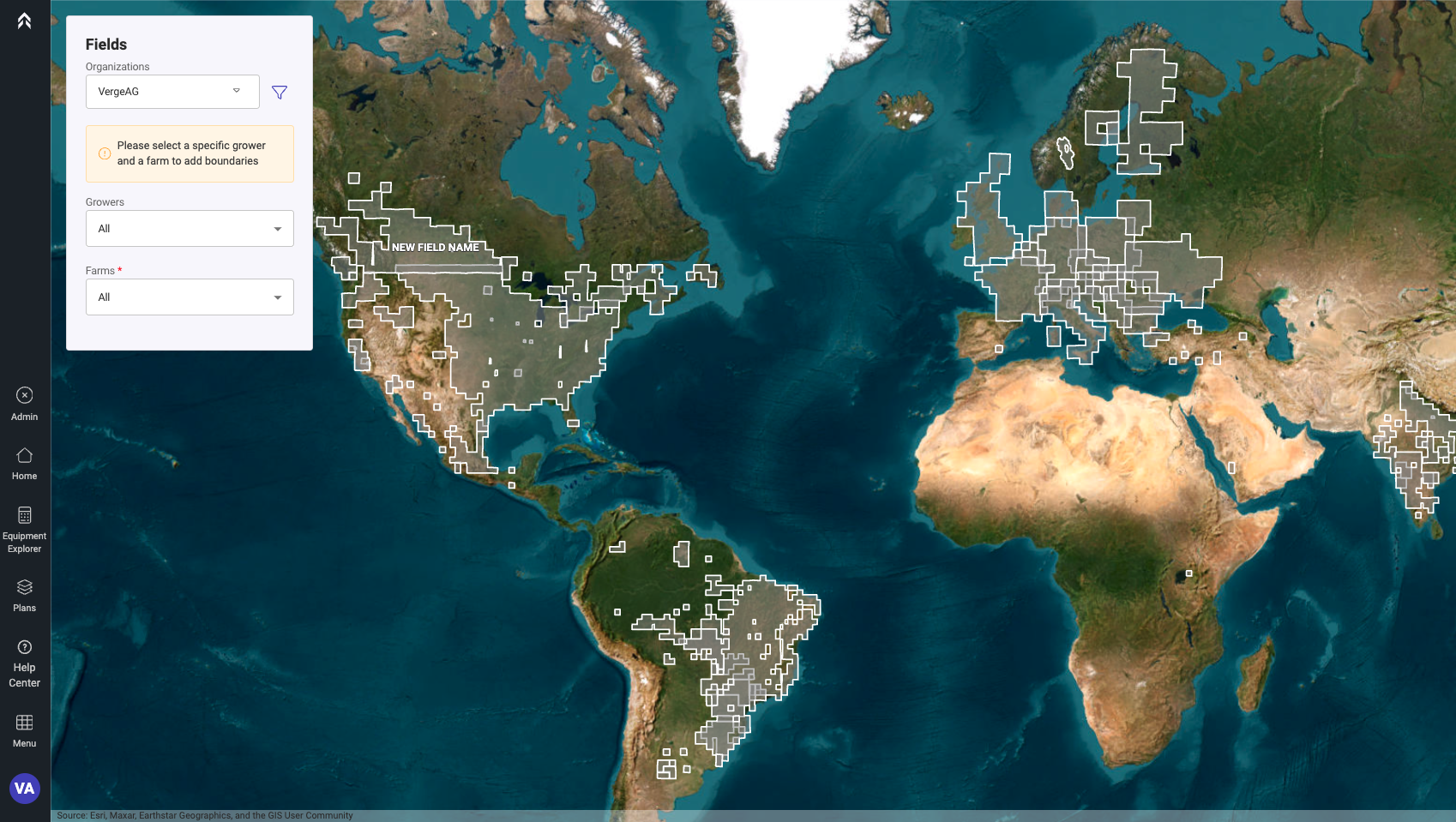
A coverage map showing where the tool is available will be displayed
-
Zoom in to the area that you would like to add fields
-
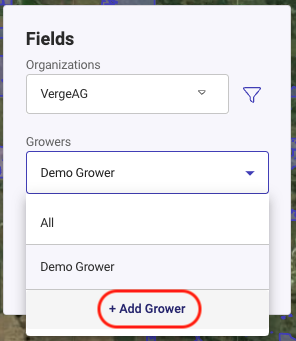
Ensure that you have the desired Grower and Farm selected
-
If they are not in the organization yet Click the option at the bottom of the list to add a Grower or Farm
-
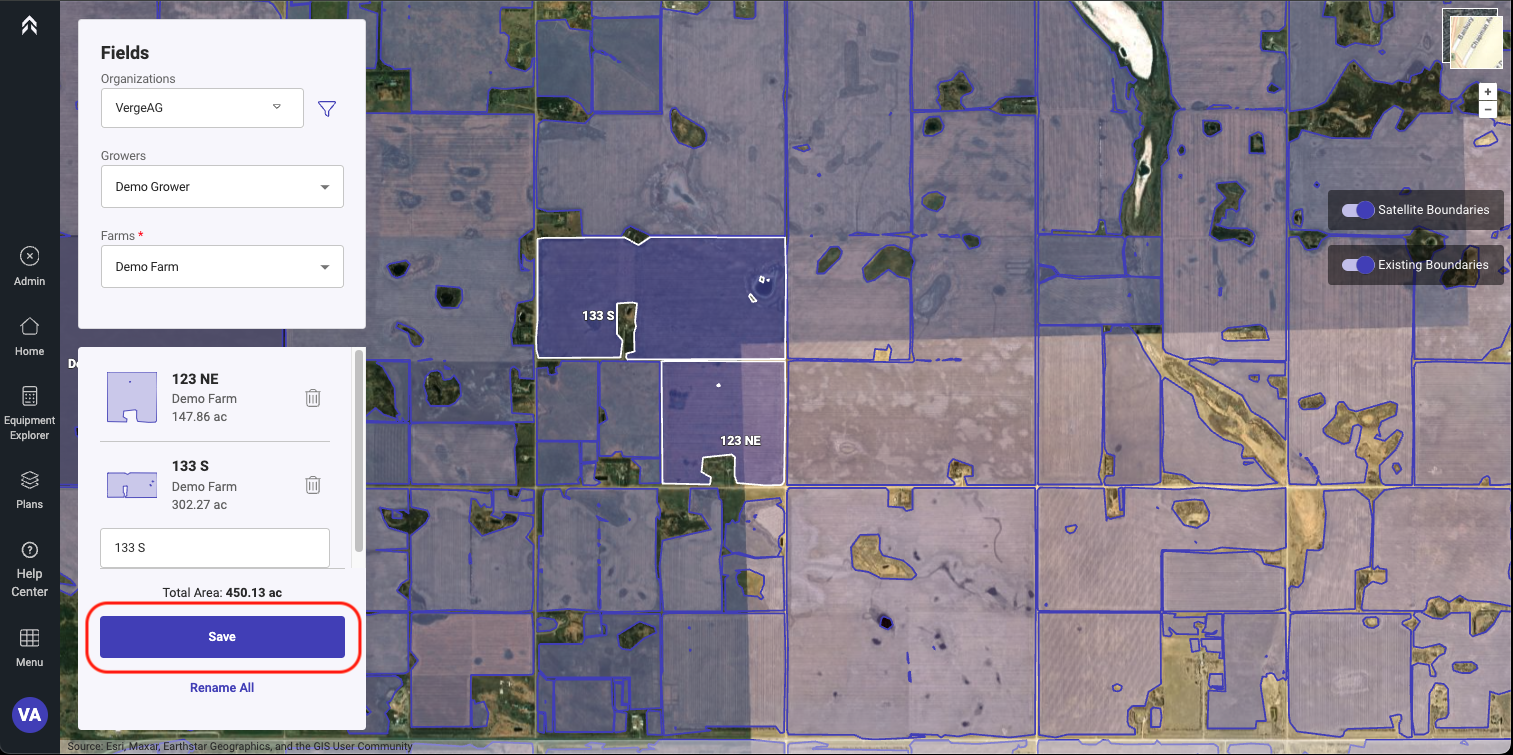
Select the Field(s) to be added.
-
Fields can be named while selecting or select the Rename All and name each Field.
-
After you have selected the Field(s) desired to be added to the organization Click Save
-
The newly selected and saved fields will now be able to be used for PathPlanning or Equipment Explorer tool.